Appearance
SermonAudio API Setup
VideoSphere publishes sermons to SermonAudio using an API key and Broadcaster ID. Unlike YouTube or Google Drive, there is no OAuth flow and no deployer environment variables — each user enters their own credentials in the app.
| VideoSphere field | Where to find it in SermonAudio |
|---|---|
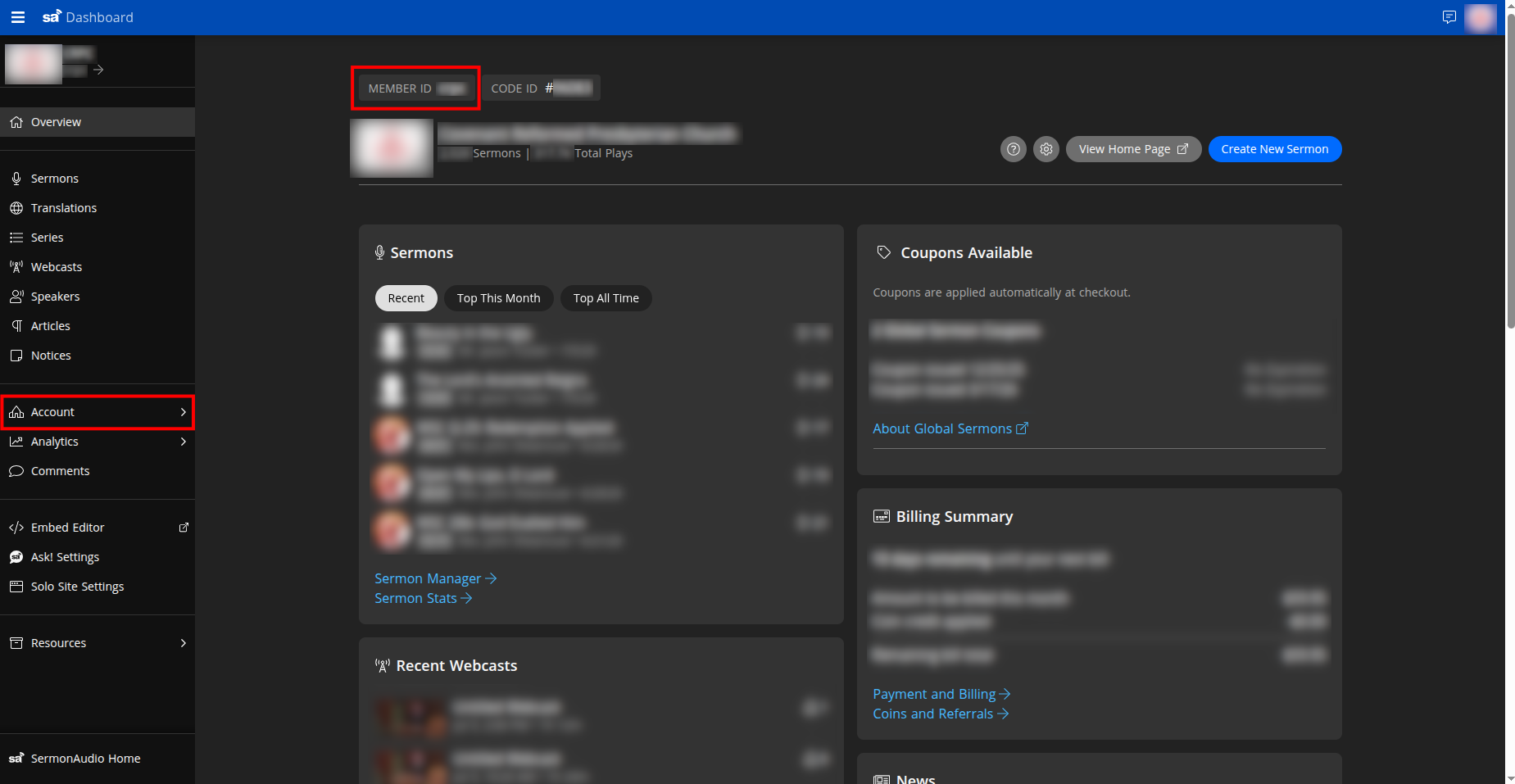
| Broadcaster ID | Member ID on the dashboard |
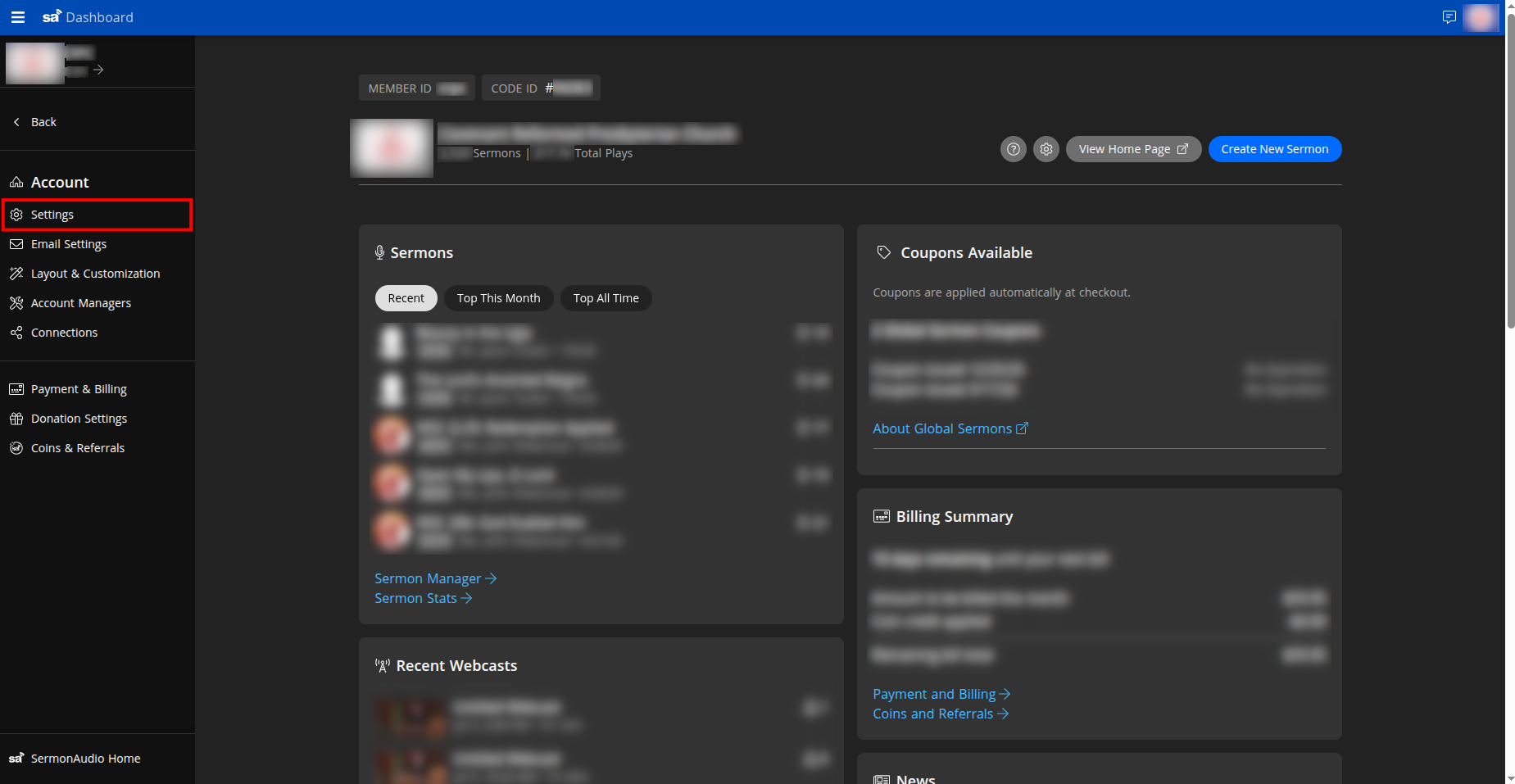
| API Key | Account → Settings → API Access |
| Label (optional) | Any friendly name you choose in VideoSphere (defaults to the Broadcaster ID) |
The server encrypts the API key in MongoDB (TOKEN_ENCRYPTION_KEY must be set on the VideoSphere instance). Credentials are verified against GET https://api.sermonaudio.com/v2/node/broadcasters/{broadcasterID} before they are saved.
Part 1 — Find your Broadcaster ID (Member ID)
Sign in to the SermonAudio dashboard. On the Overview page, find Member ID under your church or broadcaster name at the top of the main panel. In VideoSphere, enter this value as Broadcaster ID.
Do not use Code ID — that is a different identifier.
Part 2 — Open API settings
- In the left sidebar, expand Account, then click Settings.
Part 3 — Copy your API key
- Scroll to the bottom of the Settings page to API Access. Copy the API Key (use the copy icon on the right of the field). API documentation is at api.sermonaudio.com.
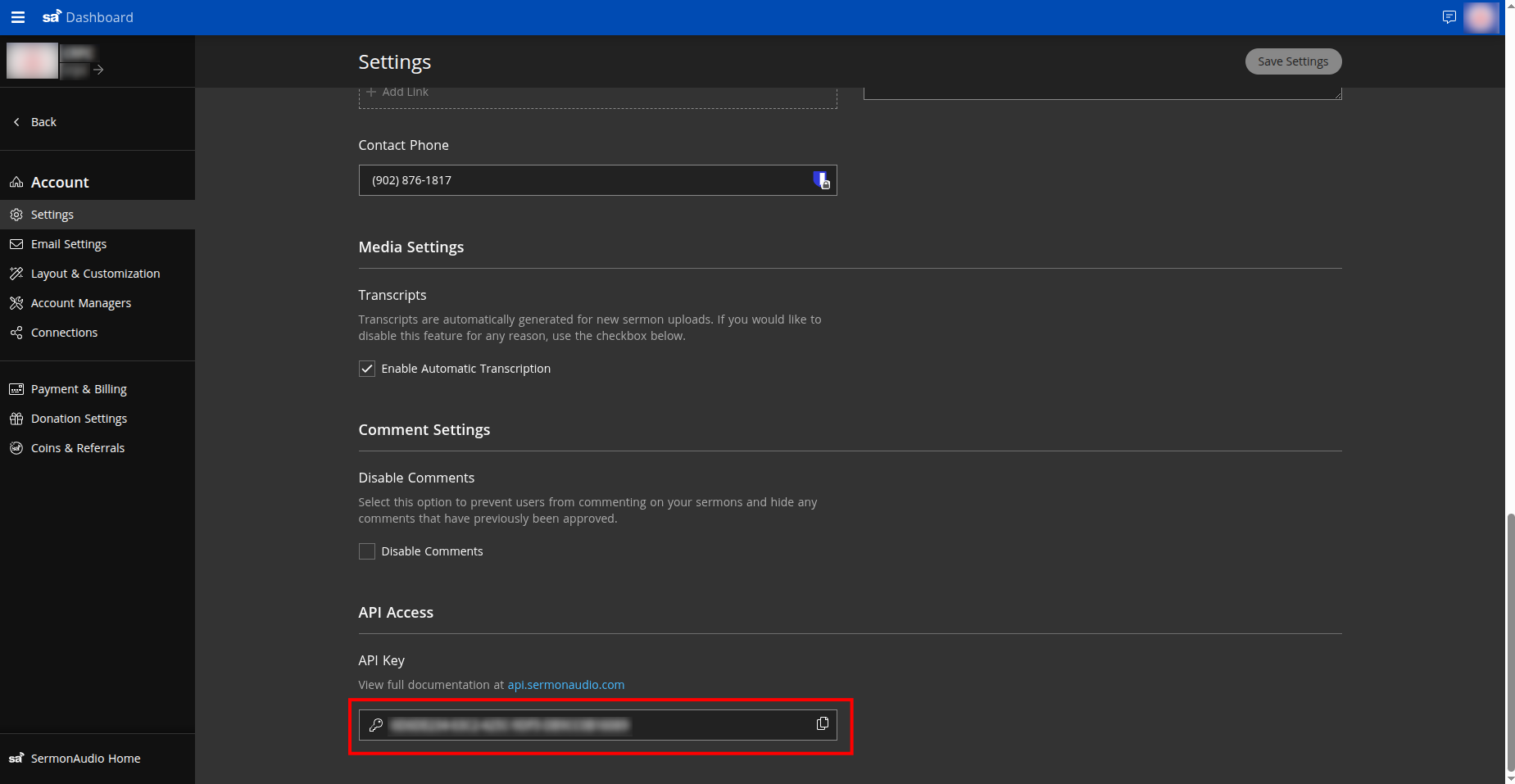
Treat the API key like a password. Do not commit it to git or share it in chat.
Part 4 — Connect in VideoSphere
In VideoSphere, sign in and open Profile → Connections (
/profile/connections).Click Connect SermonAudio (or Edit if you already connected).
Paste your credentials:
- API Key — from step 3
- Broadcaster ID — the Member ID from step 1
- Label (optional) — display name on the Connections page
Click Connect. VideoSphere verifies the key and Broadcaster ID with SermonAudio, then stores them encrypted.
When creating or editing an upload draft, enable SermonAudio as a target and fill in sermon-specific fields (speaker, series, event type, schedule, etc.). See Uploads, Livestreams & Distribution.
Troubleshooting
SermonAudio API key or broadcaster ID could not be verified
- Confirm Broadcaster ID is the Member ID, not Code ID.
- Copy the API key again from Account → Settings → API Access (no extra spaces).
- Ensure the SermonAudio account is active and the key has not been rotated on their side without updating VideoSphere.
Connect succeeds but uploads fail later
- Open Profile → Connections, click Edit on SermonAudio, and re-enter the API key if it was regenerated on SermonAudio.
- Check upload job errors on Uploads → History for SermonAudio-specific messages.
Credentials cannot be saved
- The VideoSphere operator must set
TOKEN_ENCRYPTION_KEYon the server (see Deployment Guide). Without it, encrypted storage for platform secrets will not work.
Related documentation
- Uploads, Livestreams & Distribution — connection matrix and draft metadata
- Draft Document & Upload Testing —
platforms.sermon_audioJSON fields - SermonAudio API reference