Appearance
Facebook OAuth Setup
VideoSphere publishes Facebook Reels to a connected Facebook Page using OAuth 2.0. The deployer registers one Meta developer app and sets server environment variables; each VideoSphere user connects their Facebook account from Profile → Connections, then picks which Page to publish to.
| Purpose | Environment variables |
|---|---|
| Facebook connection | FACEBOOK_APP_ID, FACEBOOK_APP_SECRET |
VideoSphere builds redirect URIs from NEXT_PUBLIC_APP_URL, so set that variable to the exact URL you use in the browser (including port) before creating the Meta app.
bash
# Local development
NEXT_PUBLIC_APP_URL=http://localhost:9624

# Production example
NEXT_PUBLIC_APP_URL=https://videos.example.com
OAuth callback path: {NEXT_PUBLIC_APP_URL}/api/platforms/callback/facebook
VideoSphere requests these Page permissions at connect time: pages_show_list, pages_read_engagement, pages_read_user_content, and pages_manage_posts. Add the same permissions on the Meta app (see Part 4).
Development mode vs published app
New Meta apps start Unpublished (Development mode). Only Facebook accounts with a role on the app — Administrator, Developer, or Tester under App roles — can complete Login while the app is unpublished.
For a personal or homelab VideoSphere instance, that is usually enough: use your own Facebook account (the one that created the app) to connect (the creator of the app, by default, has the app role of Administrator). To let other Facebook users connect, you must navigate to App roles → Roles and add the user. Otherwise, Publish the app and complete Meta App Review.
Part 1 — Create a Meta developer app
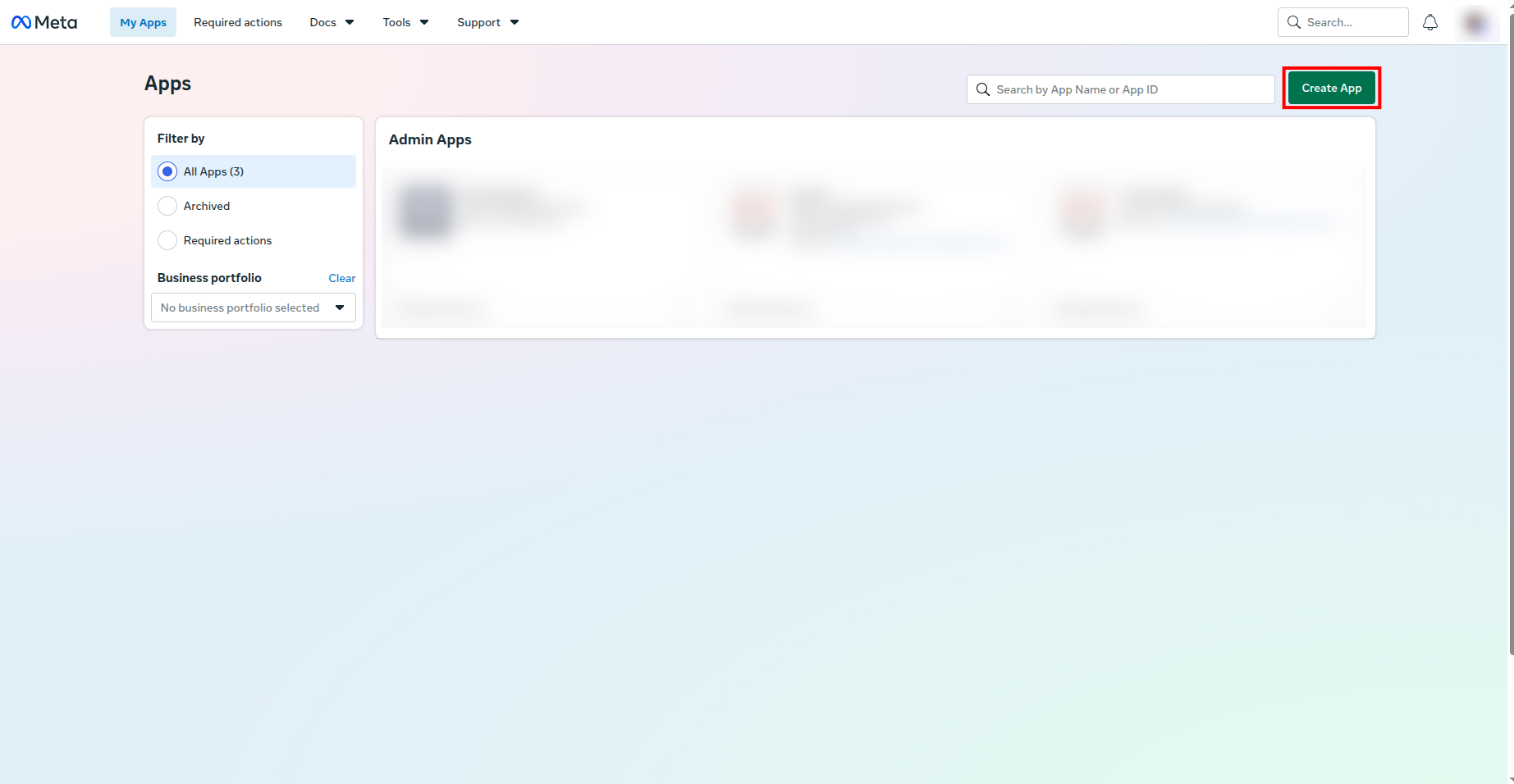
- Open developers.facebook.com, go to My Apps, and click Create App.
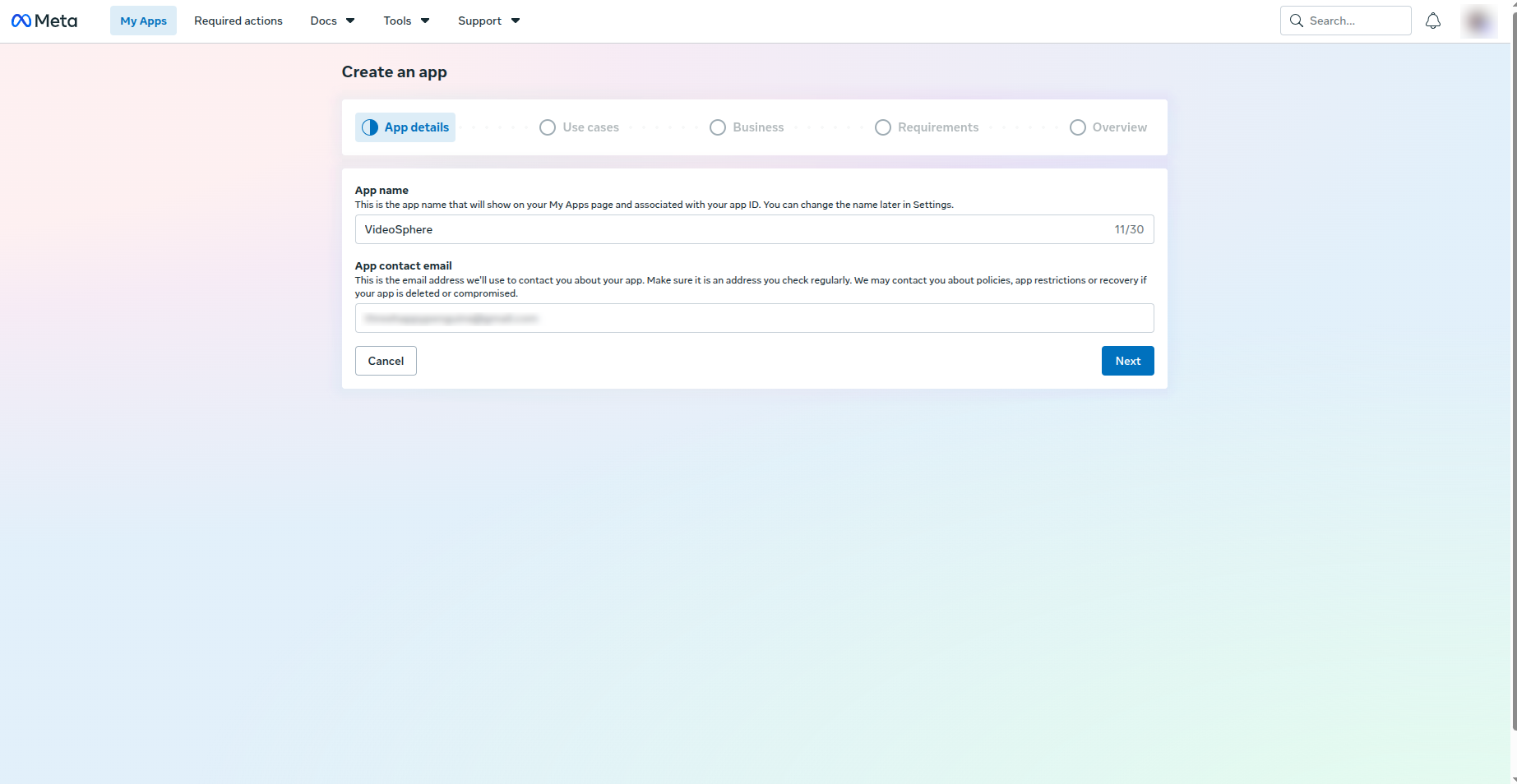
- Enter App name (e.g.
VideoSphere) and App contact email. Click Next.
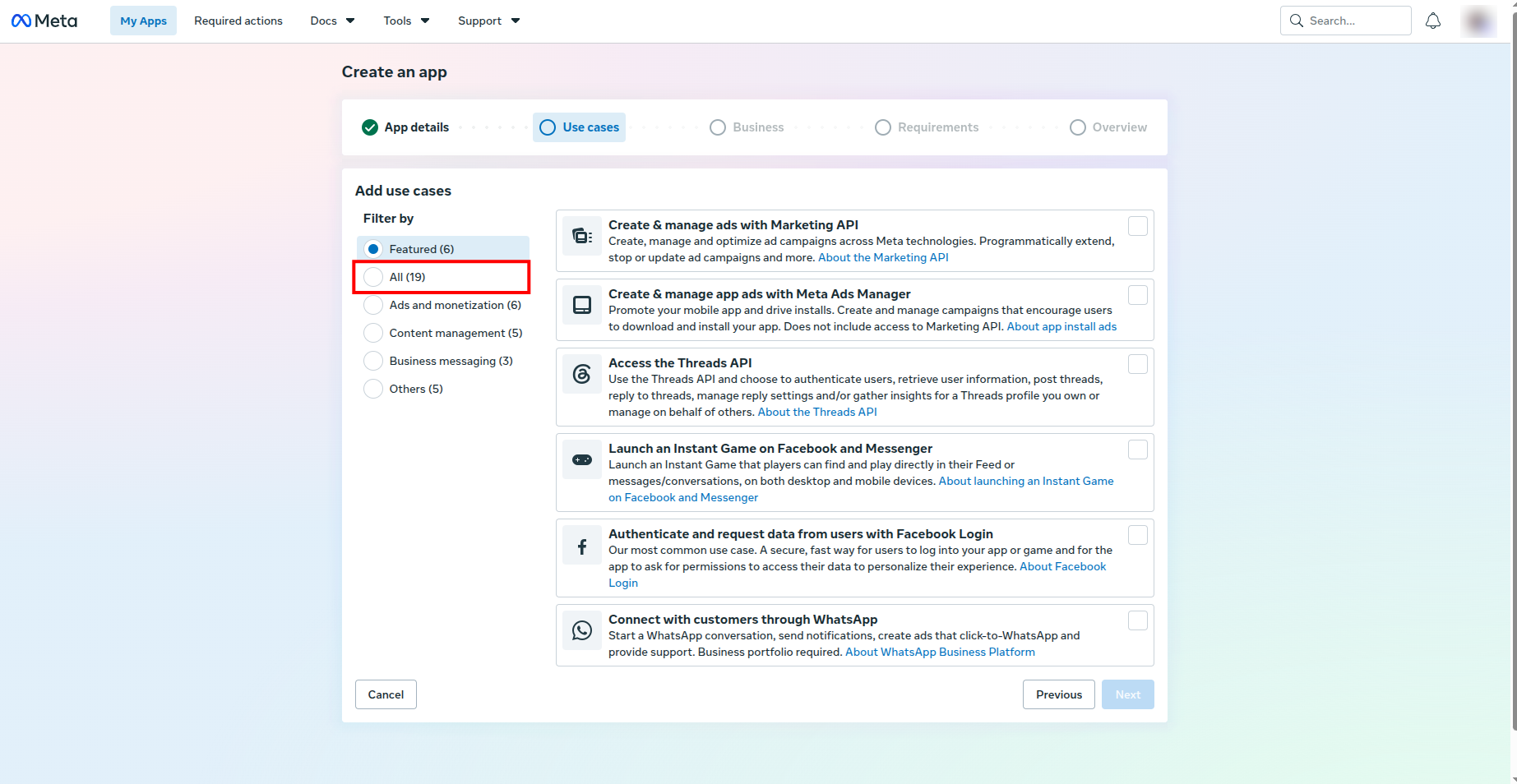
- On Add use cases, open the Filter by list and choose All (19) so the full list is visible.
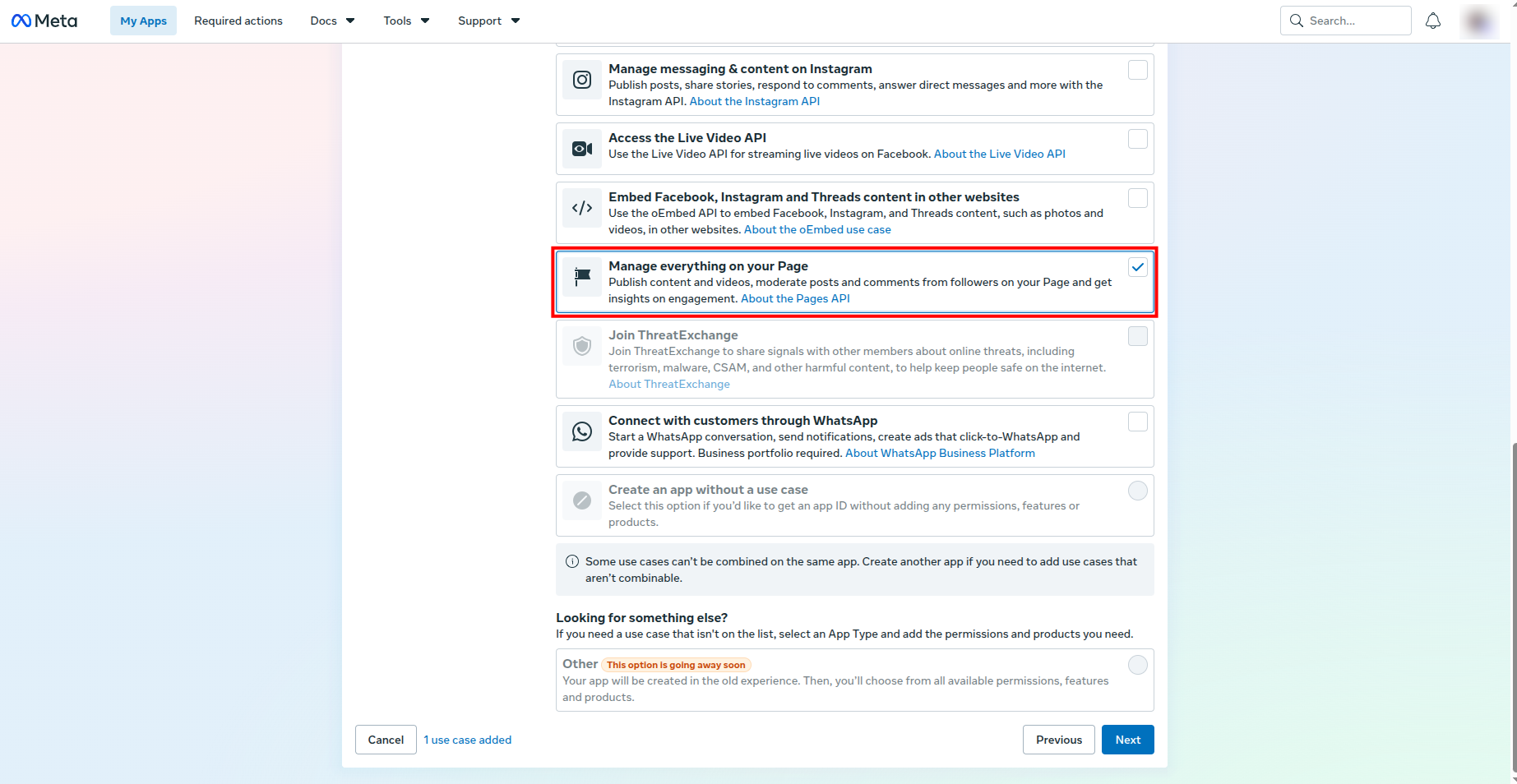
- Select Manage everything on your Page — publish content and videos, moderate posts, and read Page engagement. Click Next.
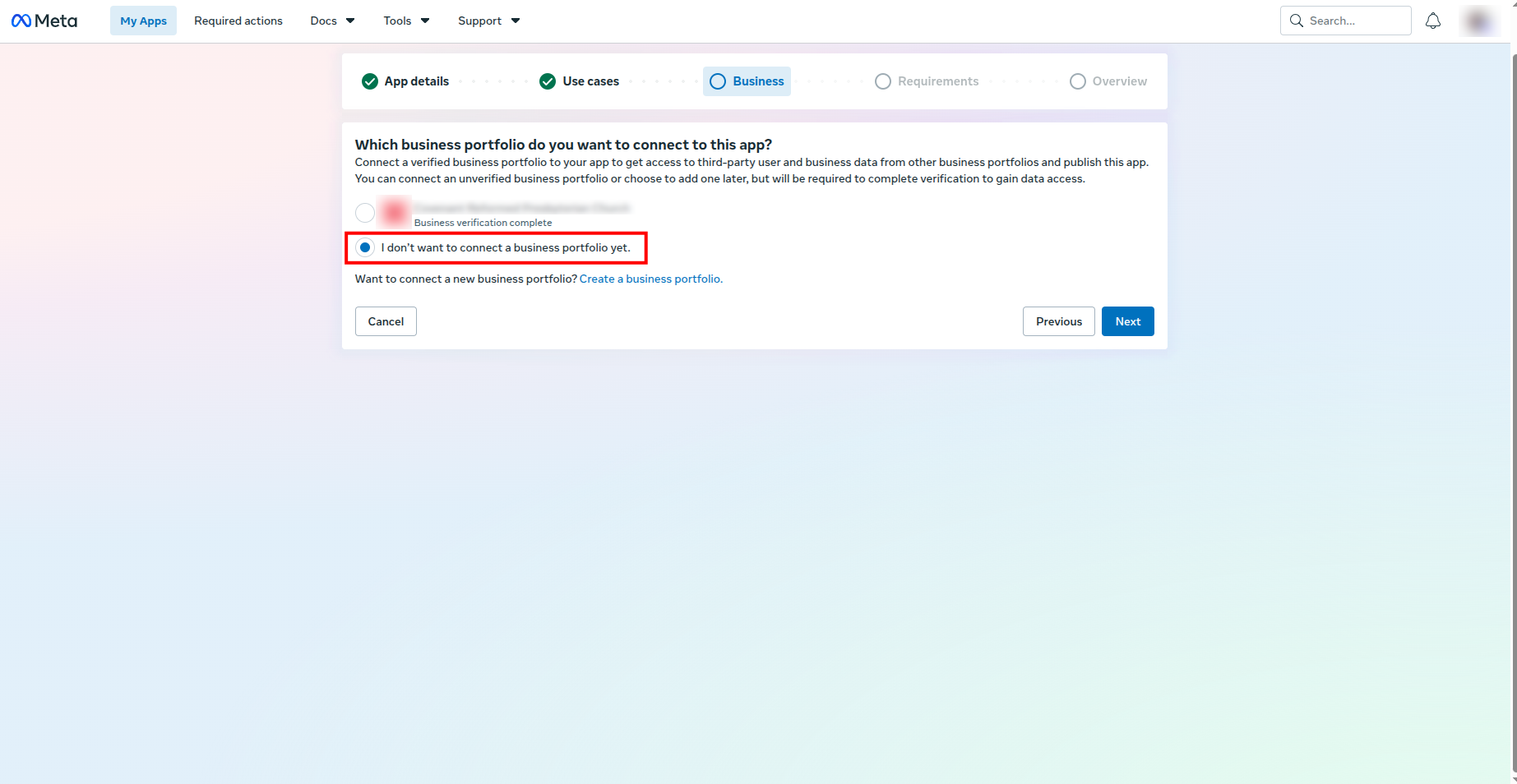
- On Business, choose I don't want to connect a business portfolio yet. Click Next.
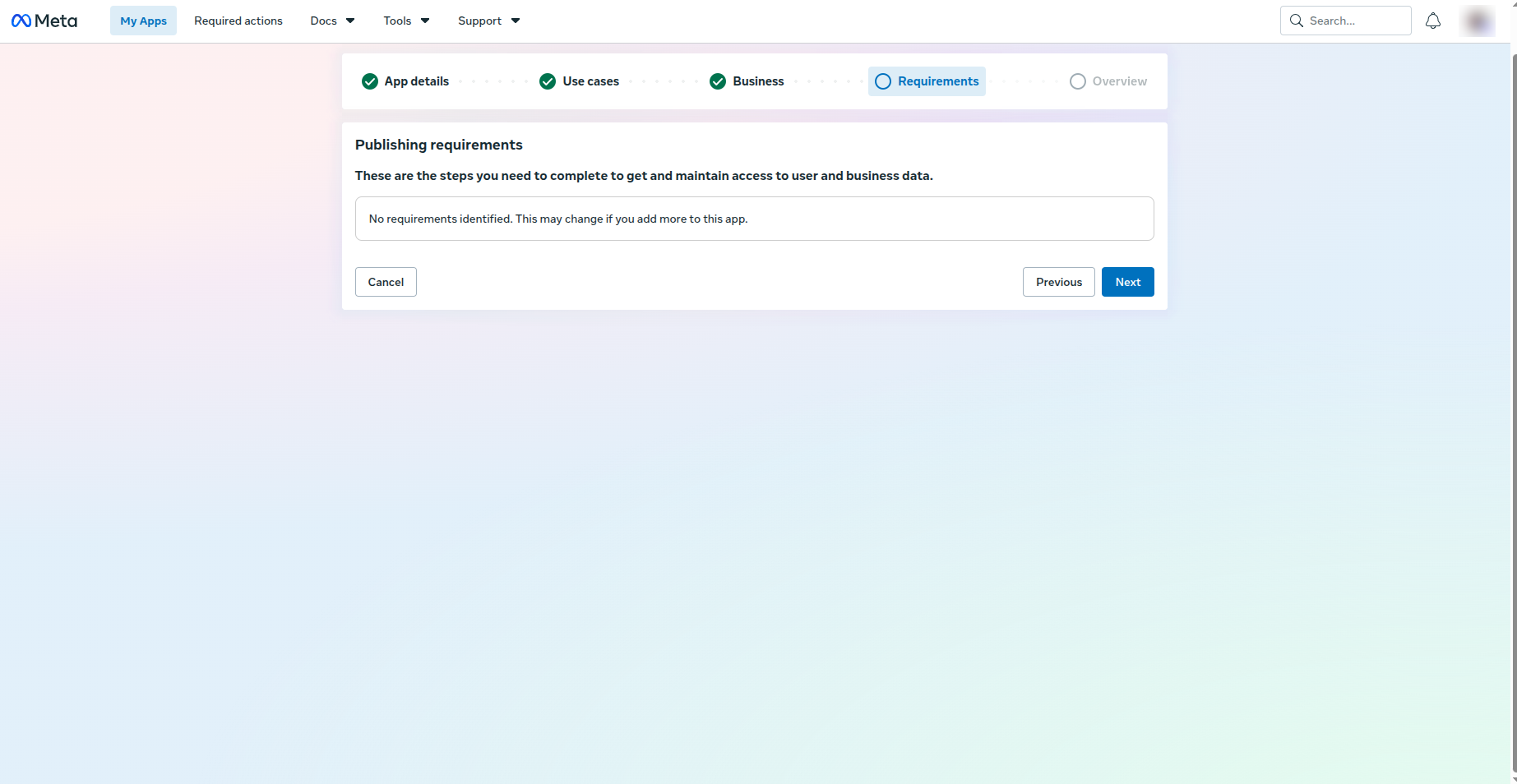
- On Publishing requirements, confirm there are no extra requirements for your selection, then click Next.
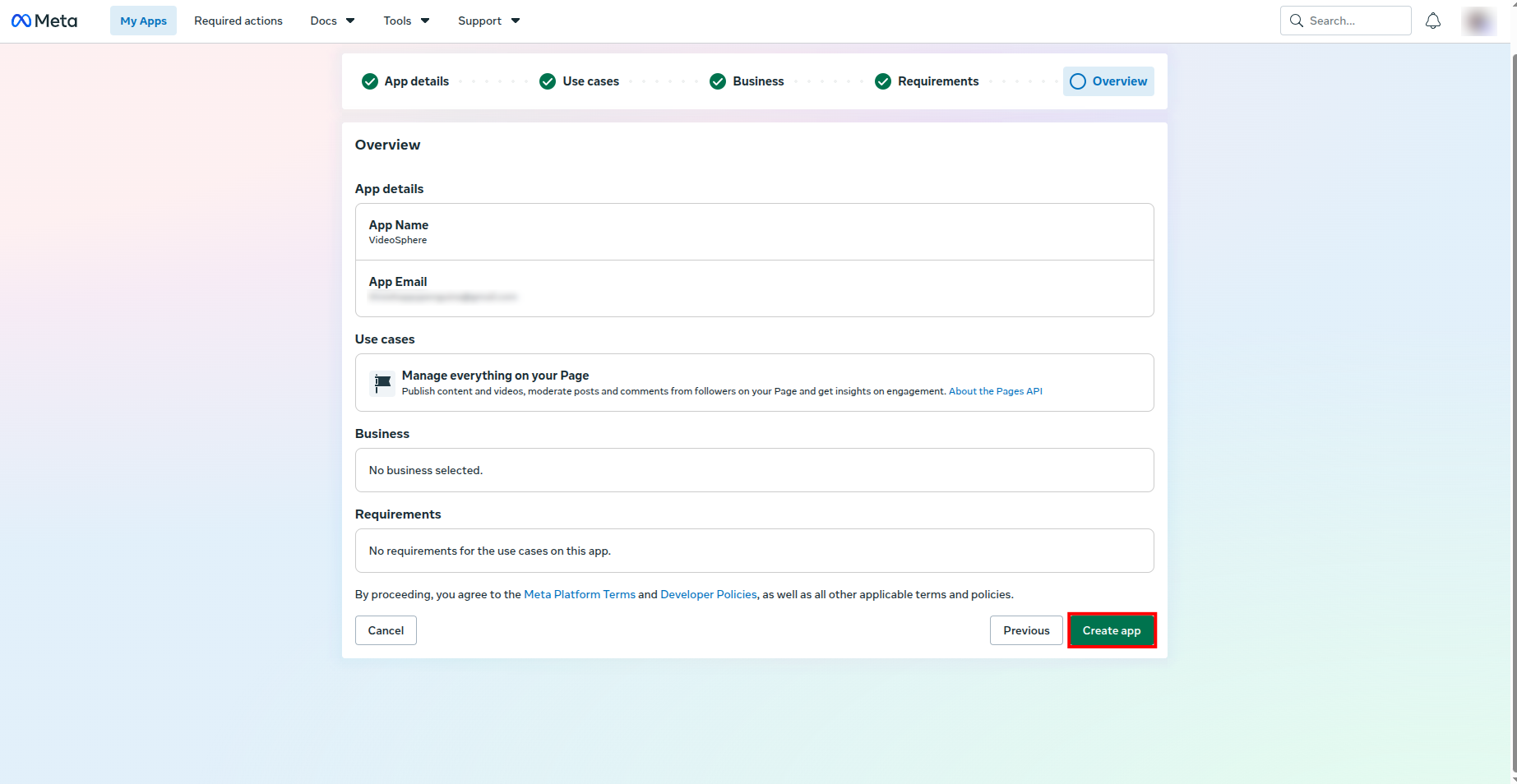
- Review the overview and click Create app.
Part 2 — Copy App ID and App Secret
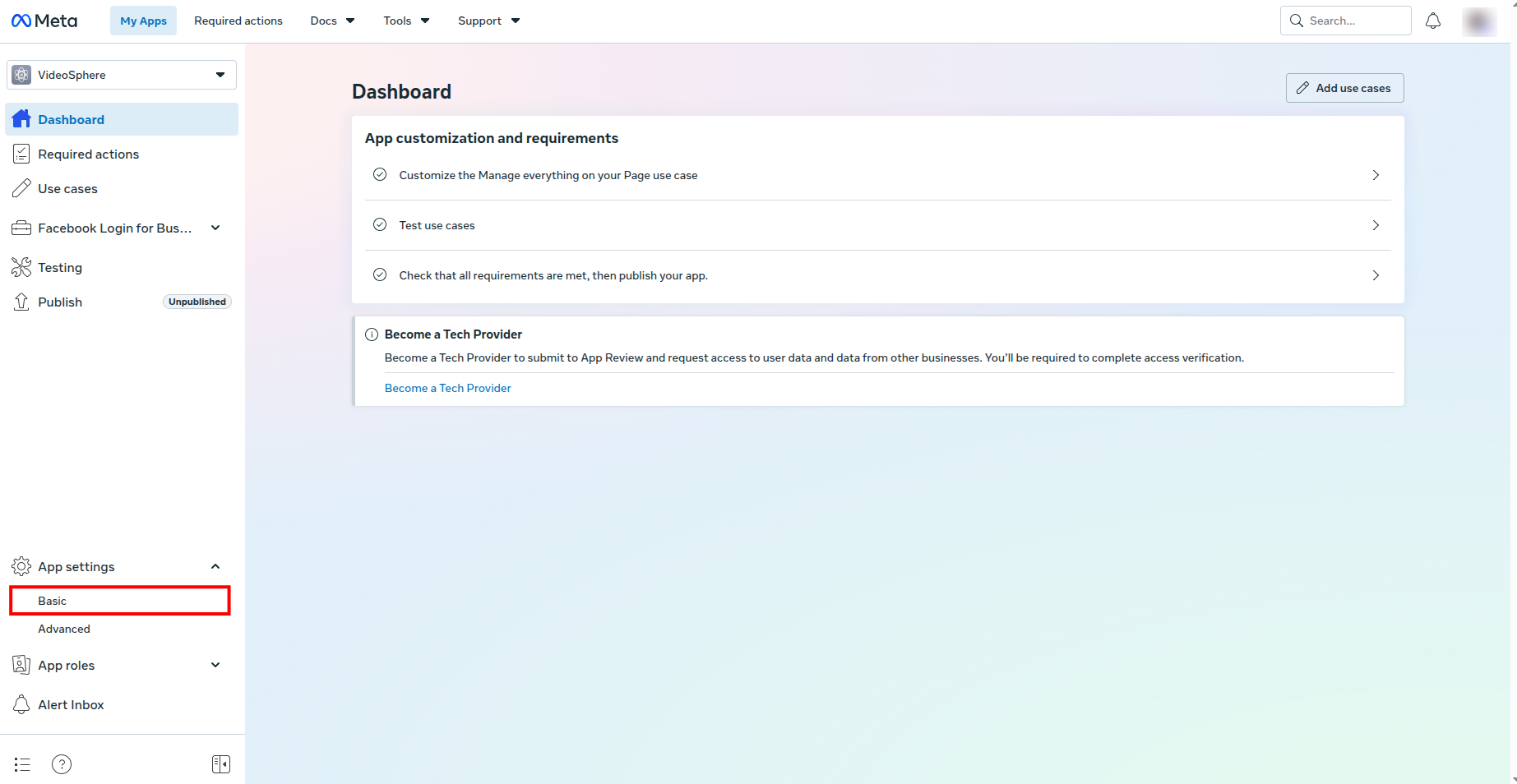
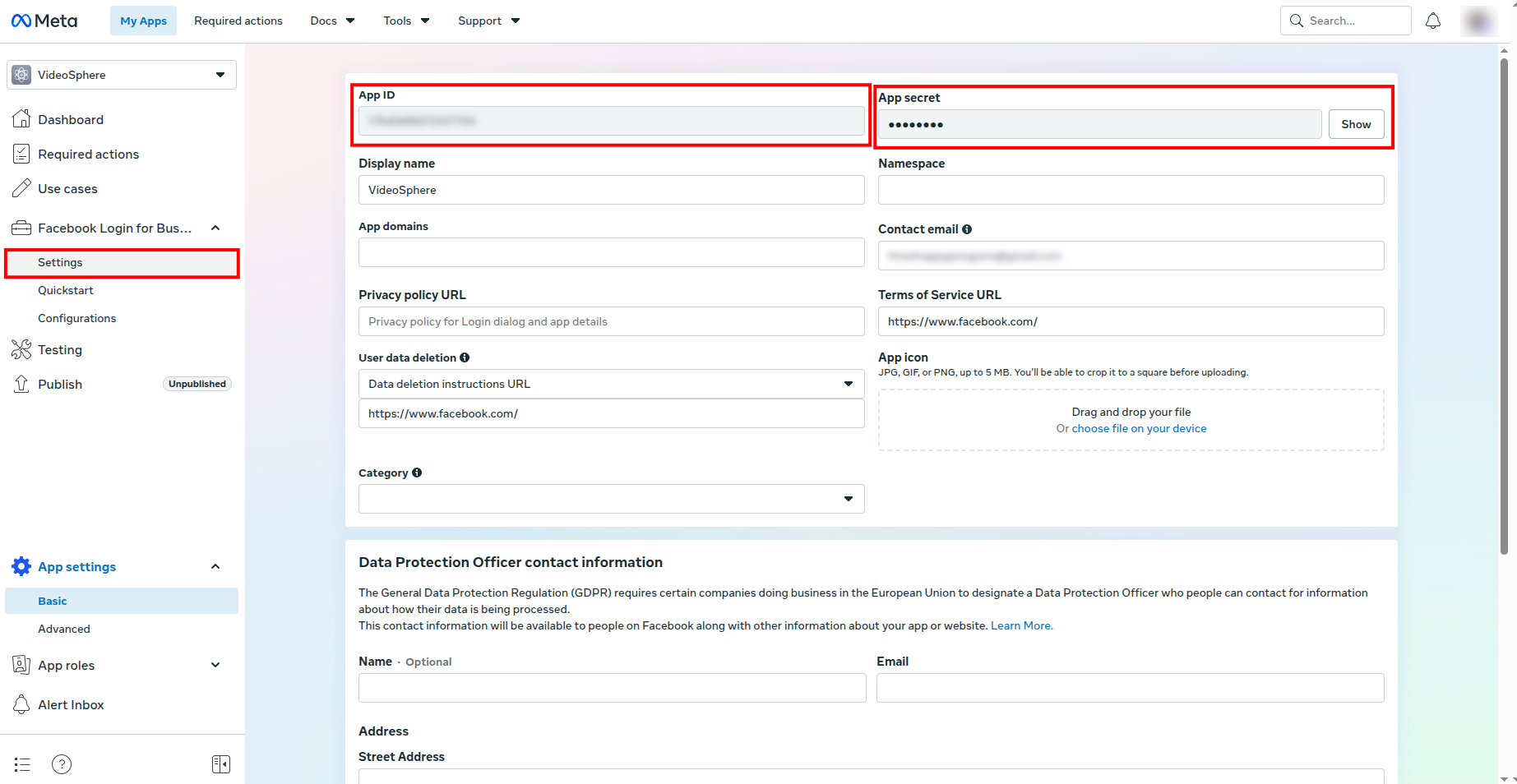
- From the app Dashboard, open App settings → Basic in the left sidebar.
- Copy App ID and App secret (click Show for the secret). These map to
FACEBOOK_APP_IDandFACEBOOK_APP_SECRET.
Part 3 — Register OAuth redirect URIs
Open Facebook Login for Business → Settings in the left sidebar.
Under Client OAuth settings, find Valid OAuth Redirect URIs. Add every origin where VideoSphere runs:
- Local:
http://localhost:9624/api/platforms/callback/facebook - Production:
https://yourdomain.com/api/platforms/callback/facebook(replace with your real host)
The path must be exactly
/api/platforms/callback/facebook. With Use Strict Mode for redirect URIs enabled, the URL must match character-for-character.- Local:
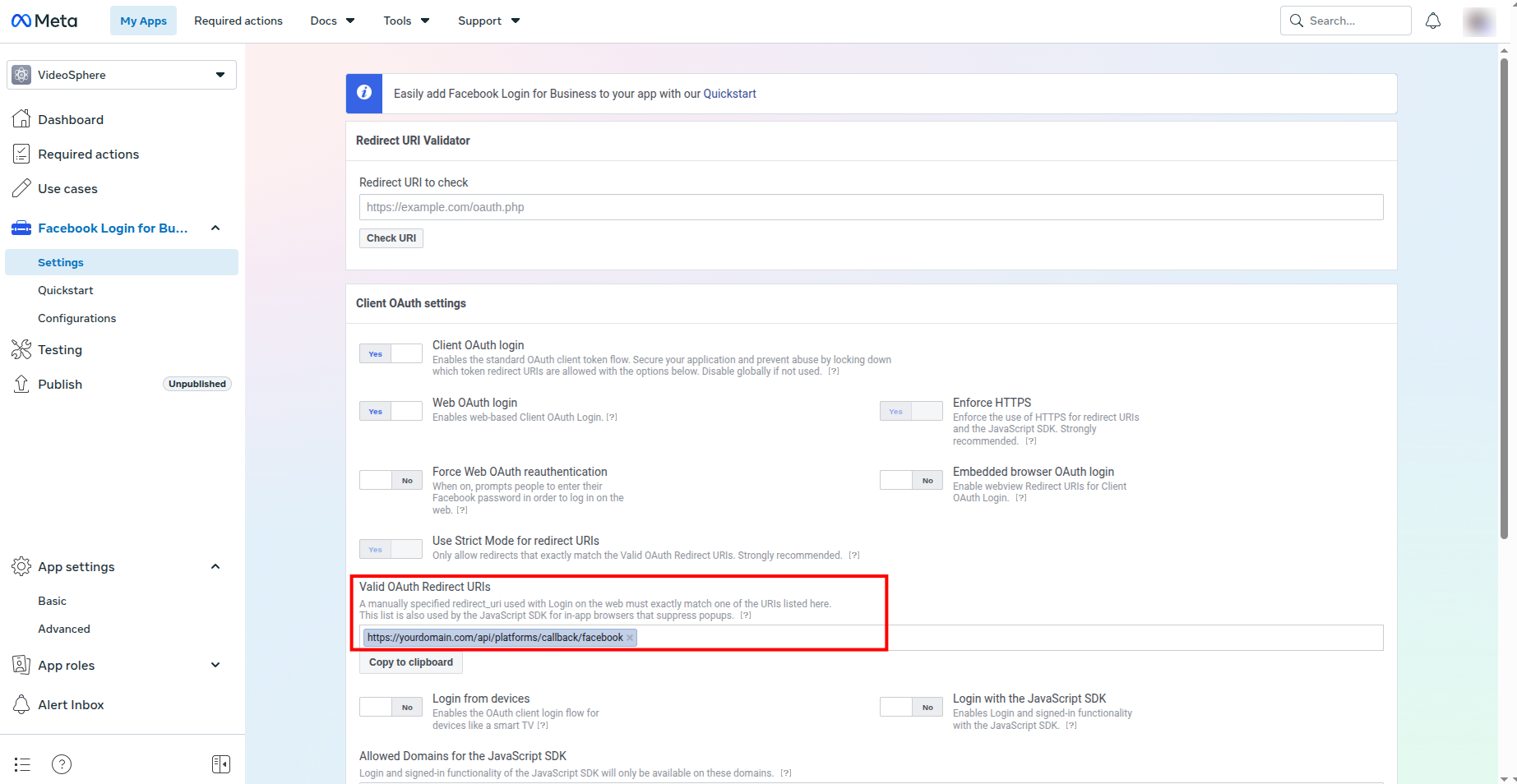
- Click Save Changes at the bottom of the page. Meta does not apply new redirect URIs until you save.
Part 4 — Add Page permissions
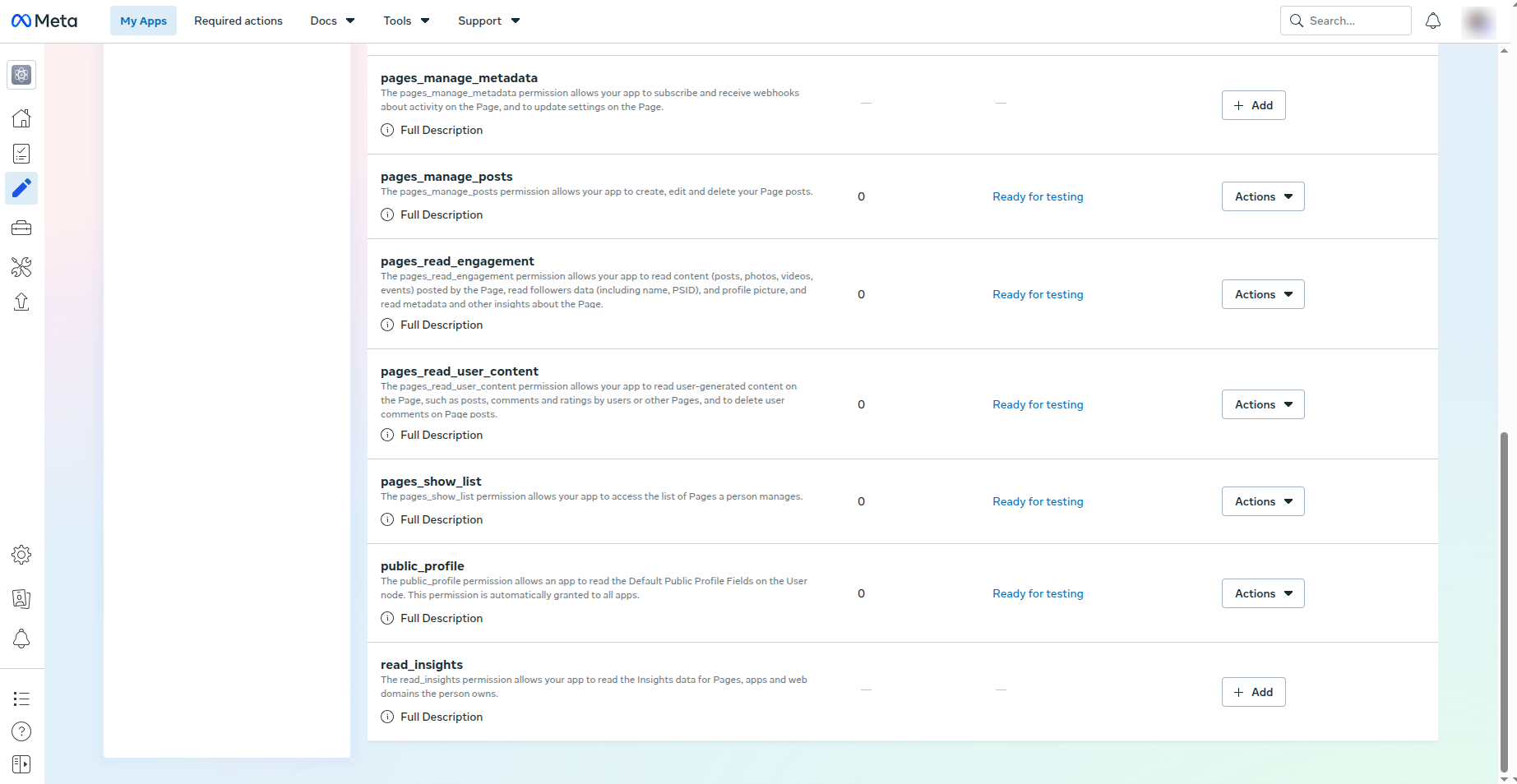
The Manage everything on your Page use case includes default permissions. VideoSphere also needs three Page permissions added explicitly.
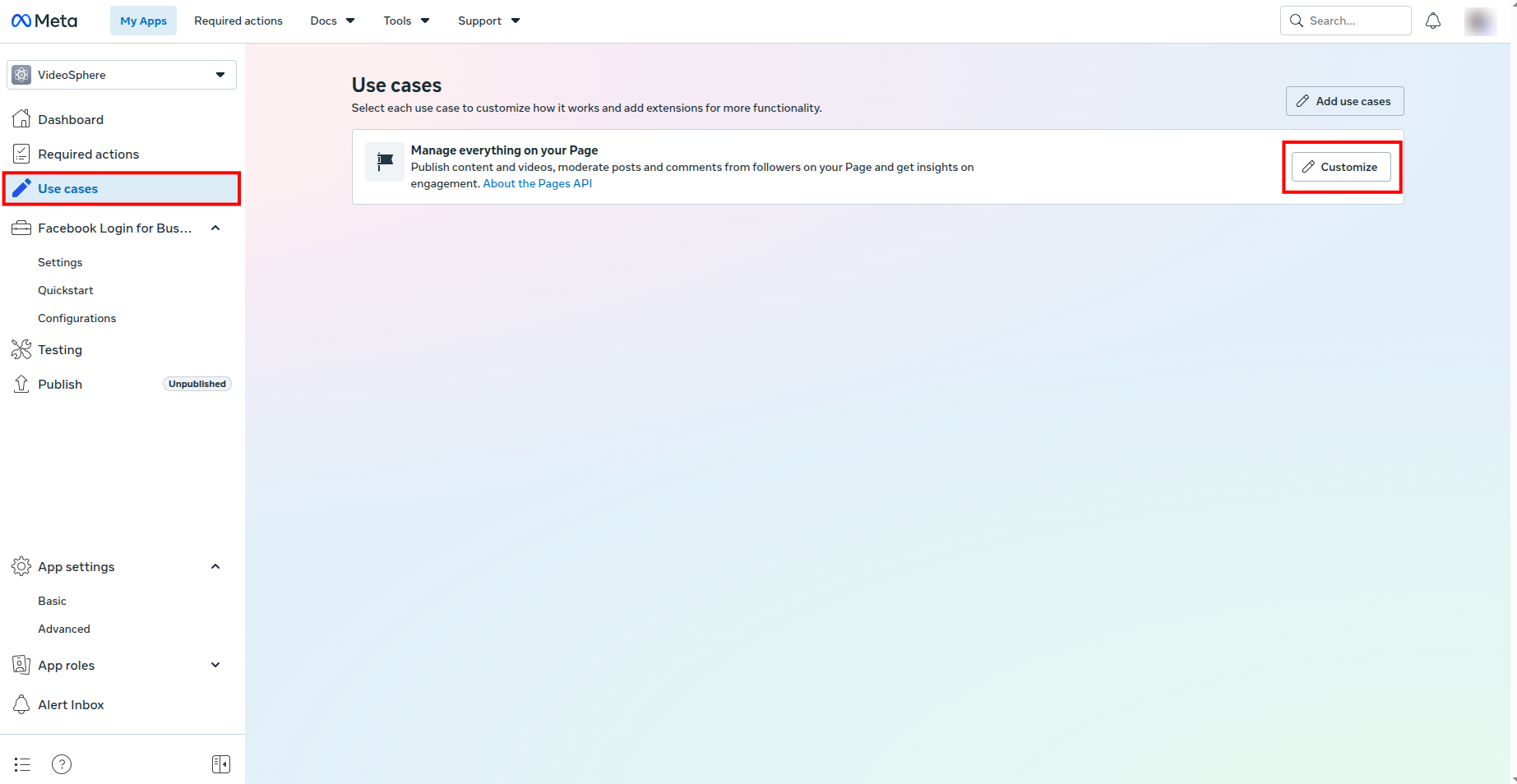
- Open Use cases in the left sidebar. On Manage everything on your Page, click Customize.
In the permissions list, click + Add for each of the following (defaults such as
pages_show_listandpublic_profileare fine as-is):pages_manage_posts— create, edit, and delete Page posts (Reels publish)pages_read_engagement— read Page content and engagement metadatapages_read_user_content— read user-generated content on the Page (comments, ratings)
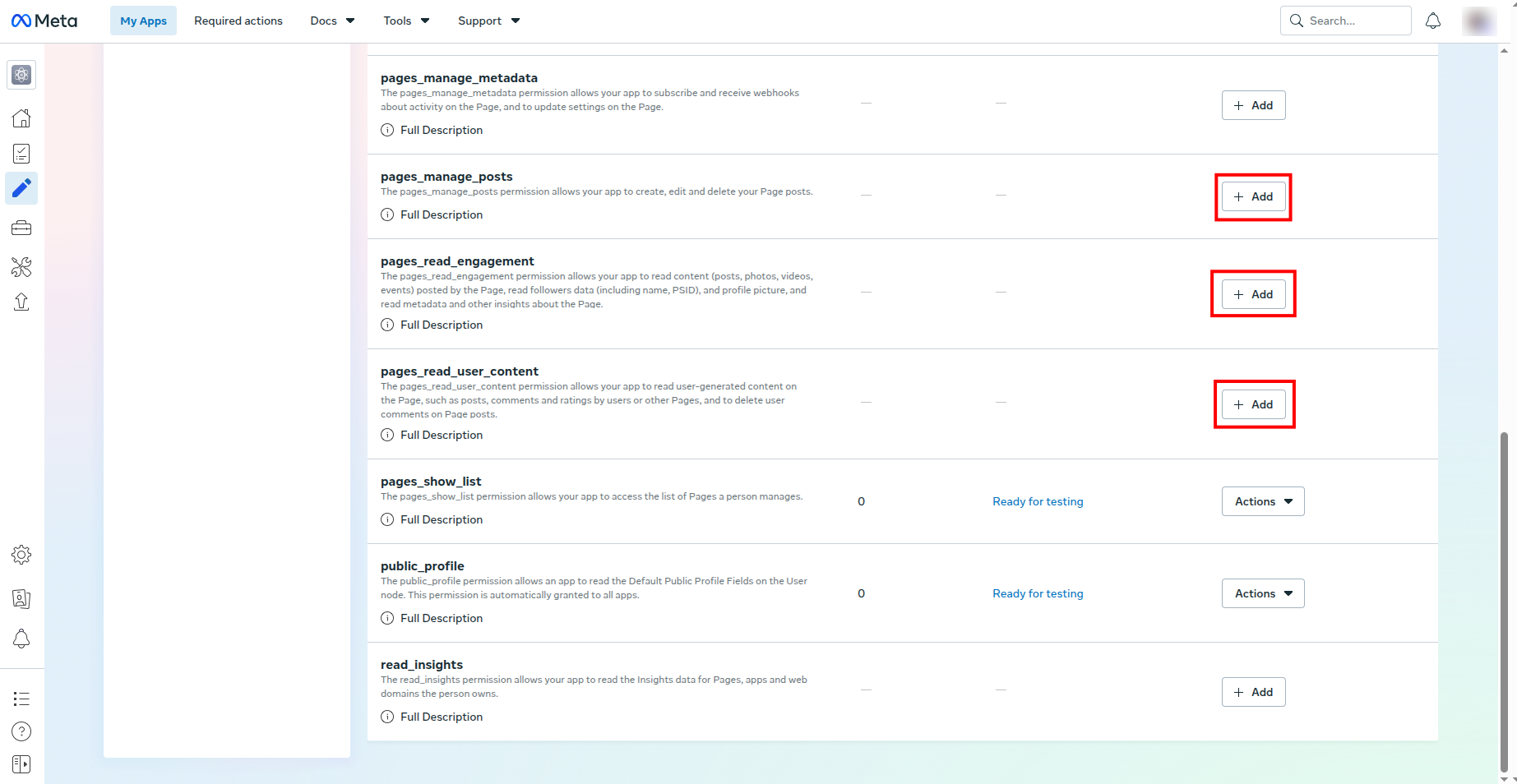
- Confirm all three show Ready for testing in the status column.
Part 5 — Configure VideoSphere
- Add credentials to
.env.localfor localpnpm devor Docker Compose (--env-file .env.local), or to Environment variables on a Portainer stack (see Deployment Guide):
bash
NEXT_PUBLIC_APP_URL=http://localhost:9624   # or your production URL

FACEBOOK_APP_ID=your_app_id
FACEBOOK_APP_SECRET=your_app_secret
Ensure
TOKEN_ENCRYPTION_KEYis set on the server so OAuth tokens are stored encrypted in MongoDB.Restart the app after updating environment variables (
pnpm devlocally, or redeploy the container).
Verify in VideoSphere
- Sign in to VideoSphere.
- Open Profile → Connections (
/profile/connections). - Click Connect Facebook and sign in with a Facebook account that has a role on the Meta app (while unpublished) and admin access to at least one Facebook Page.
- After redirect, pick the Facebook Page to publish Reels to and confirm.
- Create or edit an upload draft, enable Facebook as a target, upload video, and distribute.
If OAuth fails, check the browser URL for ?error=facebook on the Connections page and the app server logs.
Callback URL reference
Replace the host with your NEXT_PUBLIC_APP_URL origin.
| Integration | Callback path |
|---|---|
/api/platforms/callback/facebook |
Troubleshooting
Connect redirects to ?error=facebook immediately
- Confirm
FACEBOOK_APP_IDandFACEBOOK_APP_SECRETare set and the app was restarted. - Check server logs for missing env vars or token exchange errors.
URL Blocked or redirect URI error
- The callback URL on the Meta app must match
{NEXT_PUBLIC_APP_URL}/api/platforms/callback/facebookexactly. - After editing redirect URIs, click Save Changes on the Facebook Login settings page.
Login works for you but not for another Facebook user
- While the app is Unpublished, only accounts listed under App roles can log in. Add them in App roles → Roles, or publish the app and complete App Review.
OAuth succeeds but no Pages appear in the picker
- The Facebook user must be an admin of at least one Page.
- Confirm
pages_show_listis on the app and was granted during consent.
Upload to Facebook fails after connecting
- Verify
pages_manage_posts,pages_read_engagement, andpages_read_user_contentare Ready for testing on the Meta app. - Disconnect Facebook on Profile → Connections, reconnect, and re-select the Page so tokens include current permissions.
- Check upload job errors on Uploads → History.
OAuth works locally but not in production
- Add the production callback URL under Valid OAuth Redirect URIs and click Save Changes.
- Set
NEXT_PUBLIC_APP_URLto the URL users type in the browser. - Redeploy after changing env vars.
Related documentation
- Deployment Guide — full environment variable list for Docker and Portainer
- Uploads, Livestreams & Distribution — connection matrix and Reels workflow
- Draft Document & Upload Testing —
platforms.facebookmetadata fields .env.example— OAuth variable names in the repository- Meta Facebook Login documentation