Appearance
Google OAuth Setup
VideoSphere uses three separate Google OAuth clients in the same Google Cloud project:
| Client | Purpose | Environment variables |
|---|---|---|
| Google Sign-in | Login and signup with Google | GOOGLE_CLIENT_ID, GOOGLE_CLIENT_SECRET |
| YouTube Connection | Upload and manage videos on a connected YouTube channel | YOUTUBE_CLIENT_ID, YOUTUBE_CLIENT_SECRET |
| Google Drive Connection | Backup uploads to Google Drive | GOOGLE_DRIVE_CLIENT_ID, GOOGLE_DRIVE_CLIENT_SECRET |
Each client has its own callback URL. VideoSphere builds redirect URIs from NEXT_PUBLIC_APP_URL, so set that variable to the exact URL you use in the browser (including port) before creating OAuth clients.
bash
# Local development
NEXT_PUBLIC_APP_URL=http://localhost:9624

# Production example
NEXT_PUBLIC_APP_URL=https://videos.example.com
Email/password login works without Google OAuth. Create only the clients you need.
Part 1 — Enable APIs
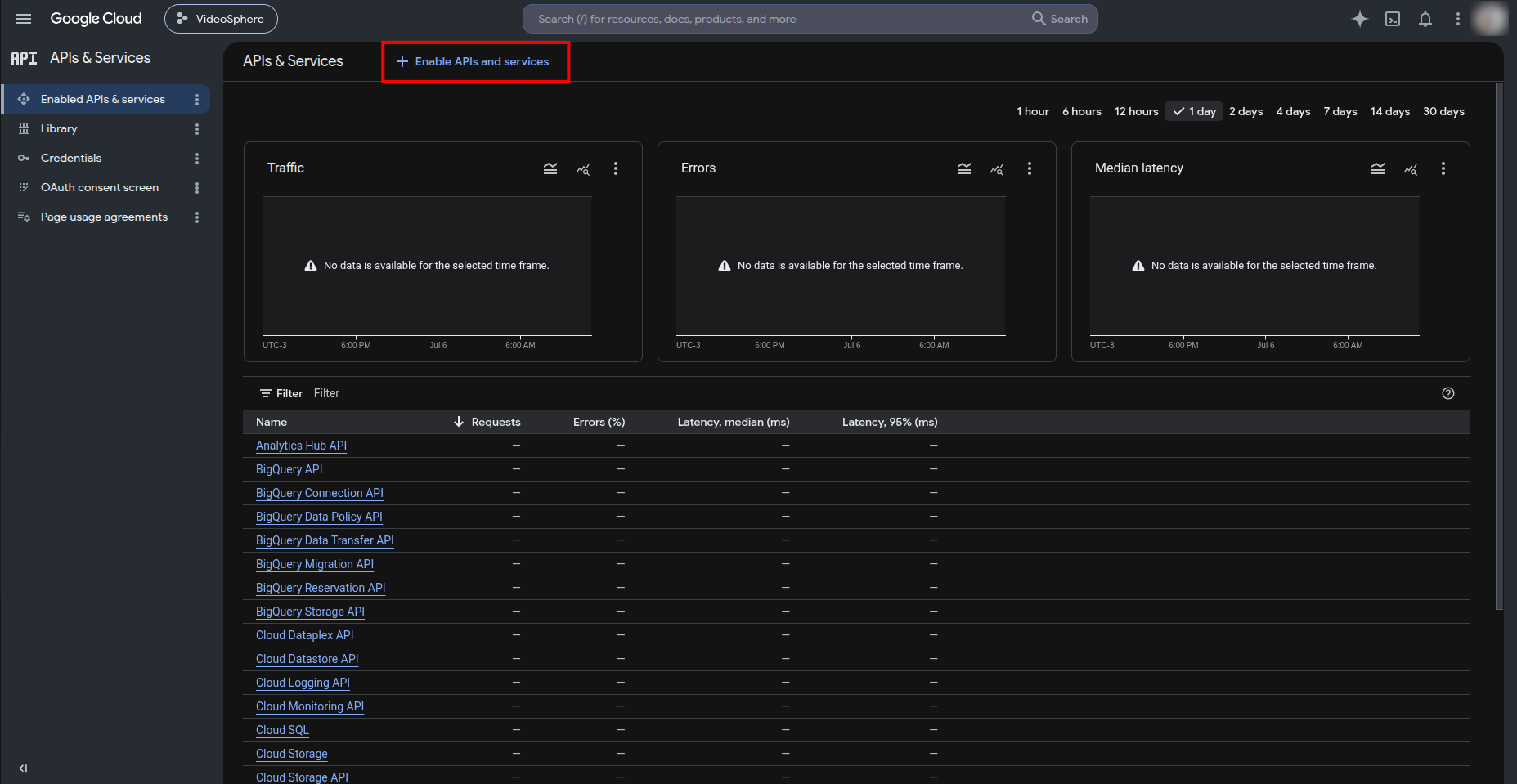
Open Google Cloud Console and select your project (or create one). Go to APIs & Services → Enabled APIs & services, then click + Enable APIs and services.
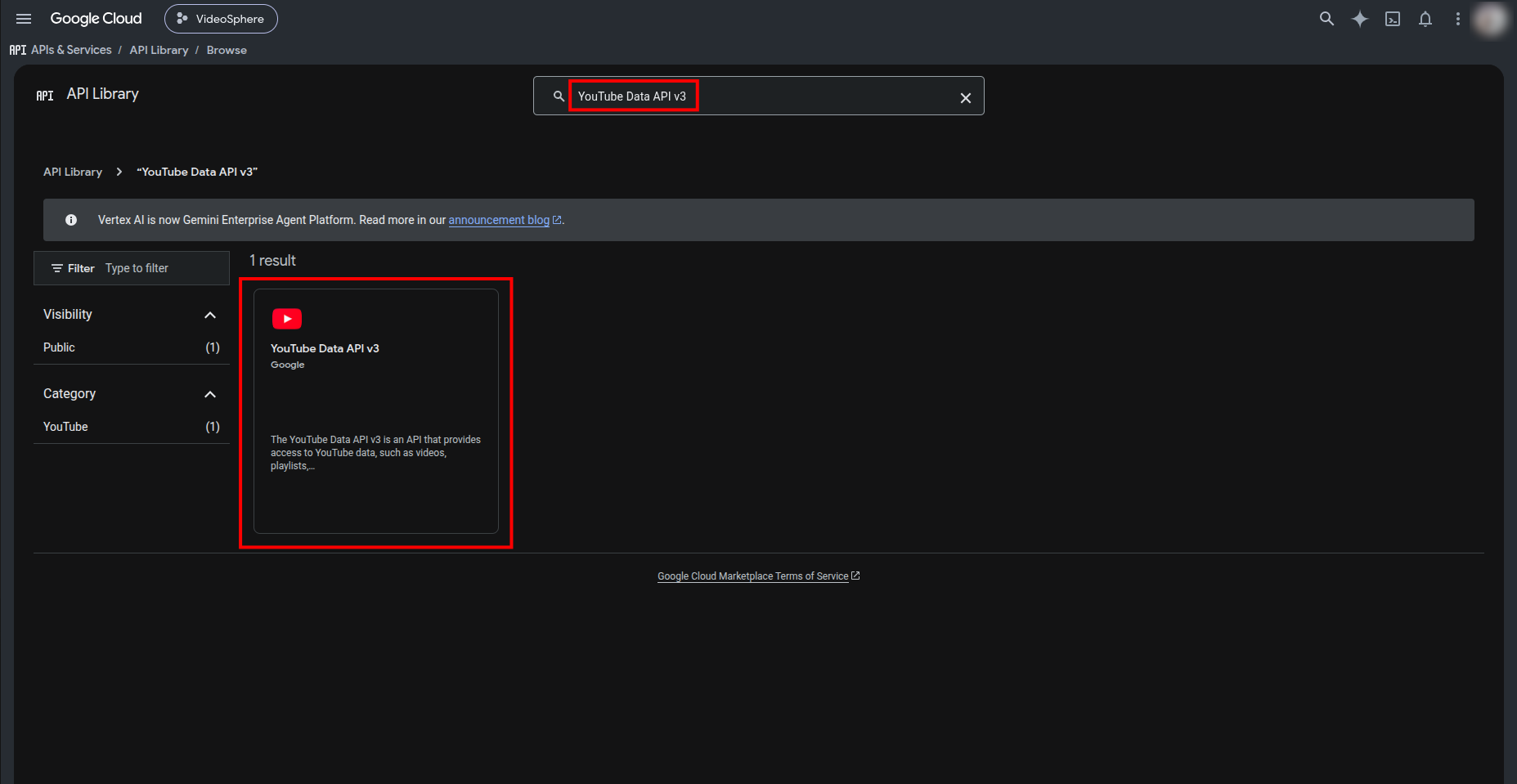
Search for YouTube Data API v3 and open it.
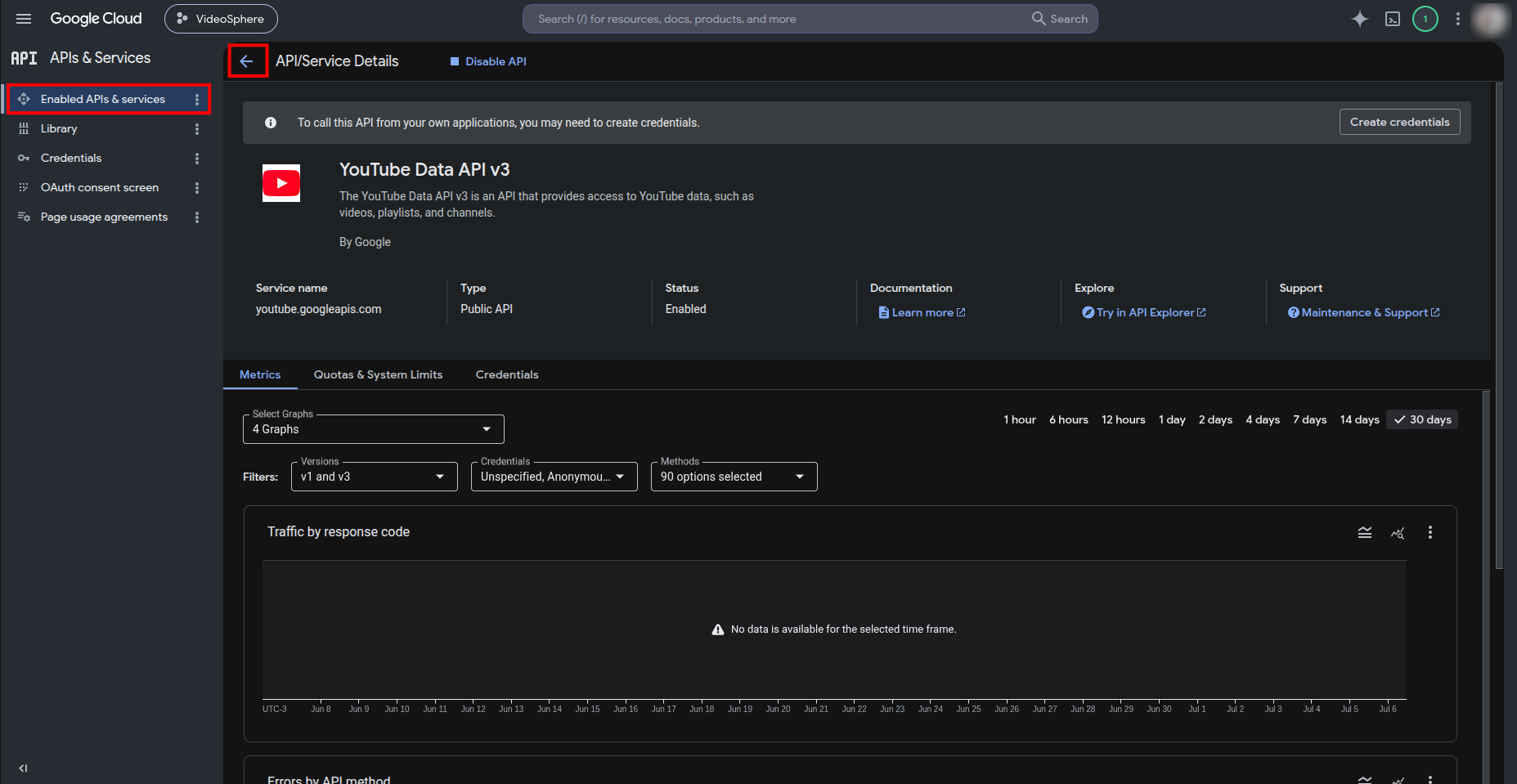
Click Enable if the API is not already enabled. When status shows Enabled, return to the API library.
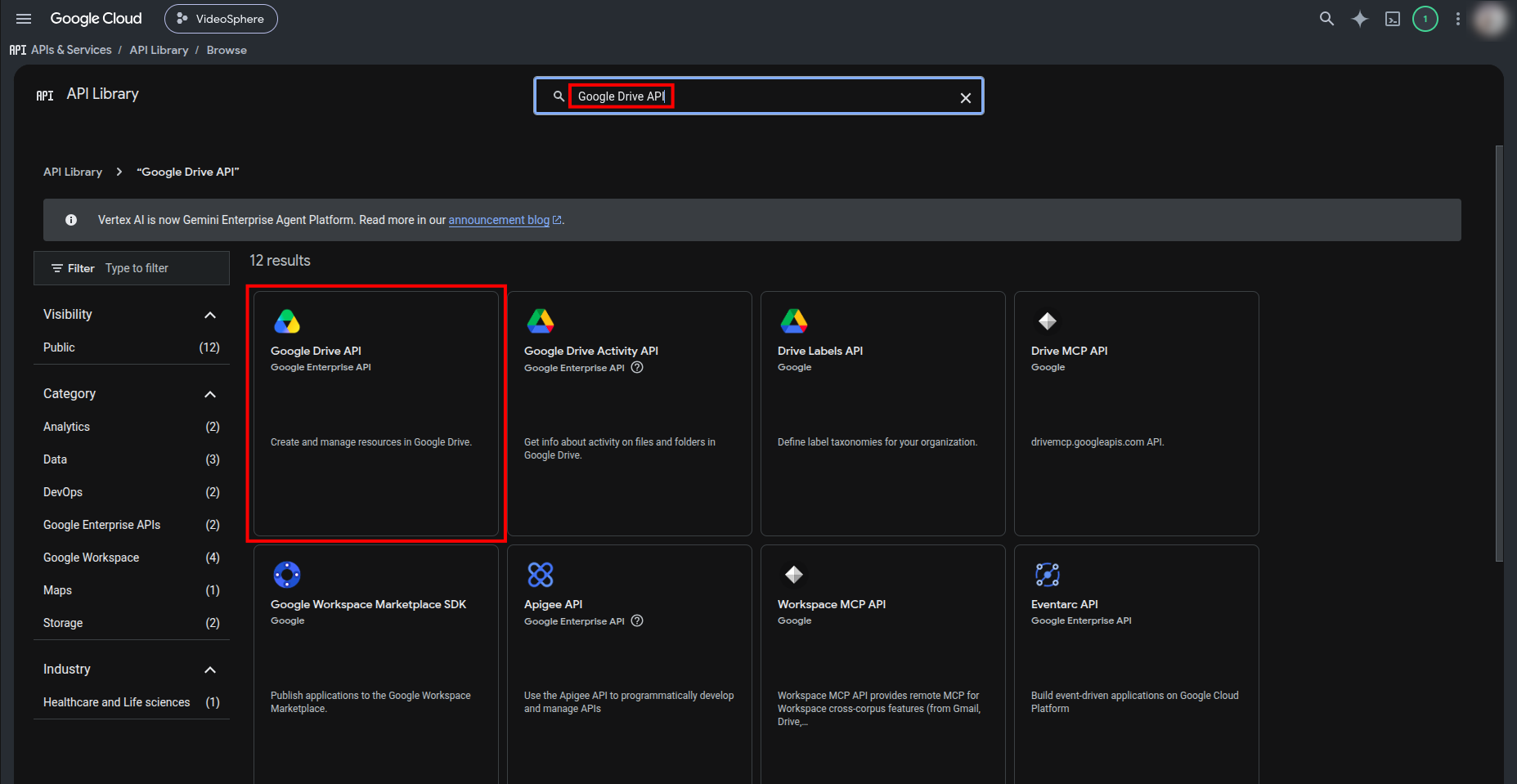
Search for Google Drive API and open it.
Click Enable if needed. When status shows Enabled, open Google Auth Platform → OAuth consent screen in the left sidebar (or APIs & Services → OAuth consent screen in the classic menu).
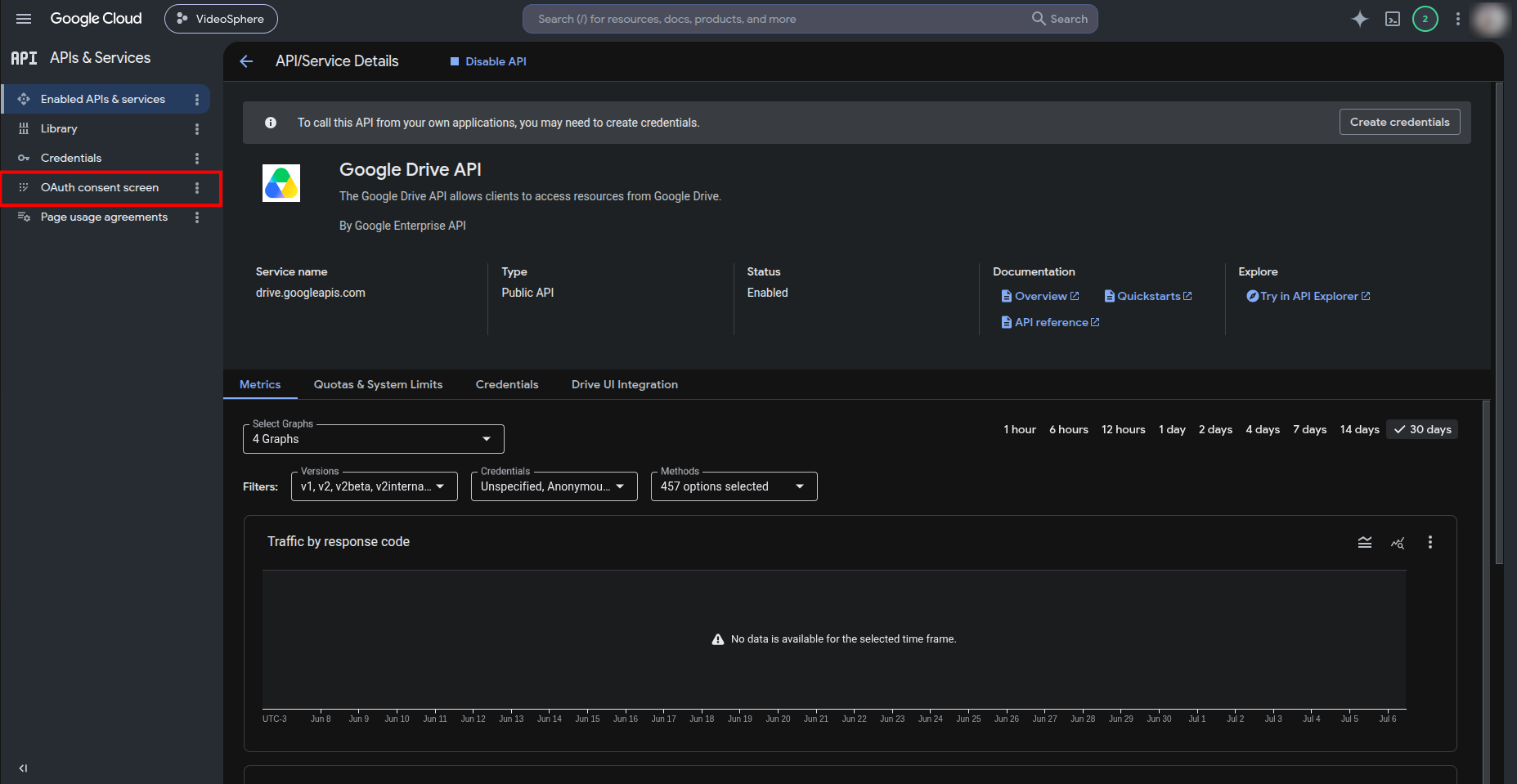
Part 2 — OAuth consent screen (branding)
These steps configure the consent screen shared by all three OAuth clients.
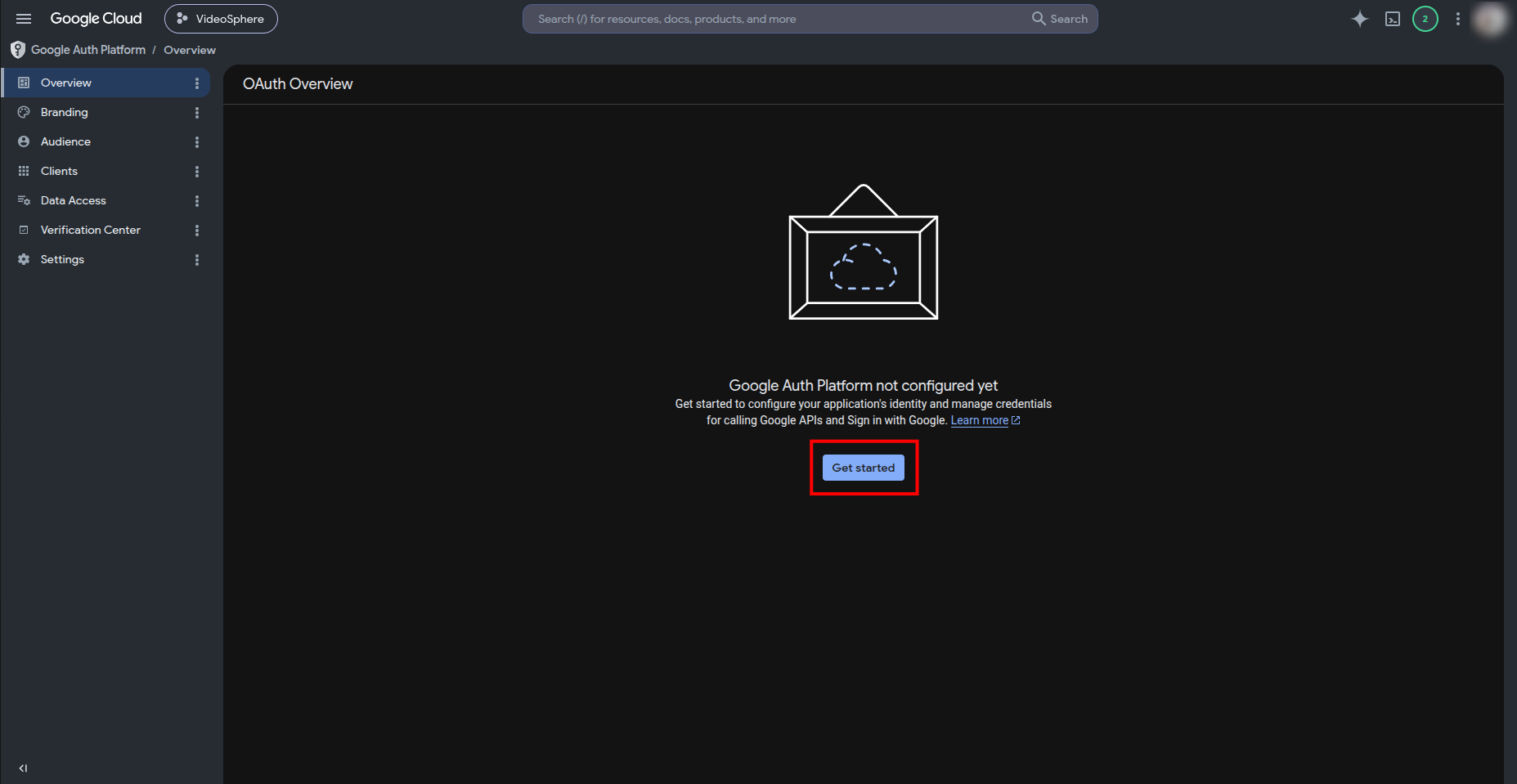
On the OAuth Overview page, click Get started.
App Information — enter an app name (e.g.
VideoSphere) and a support email. Click Next.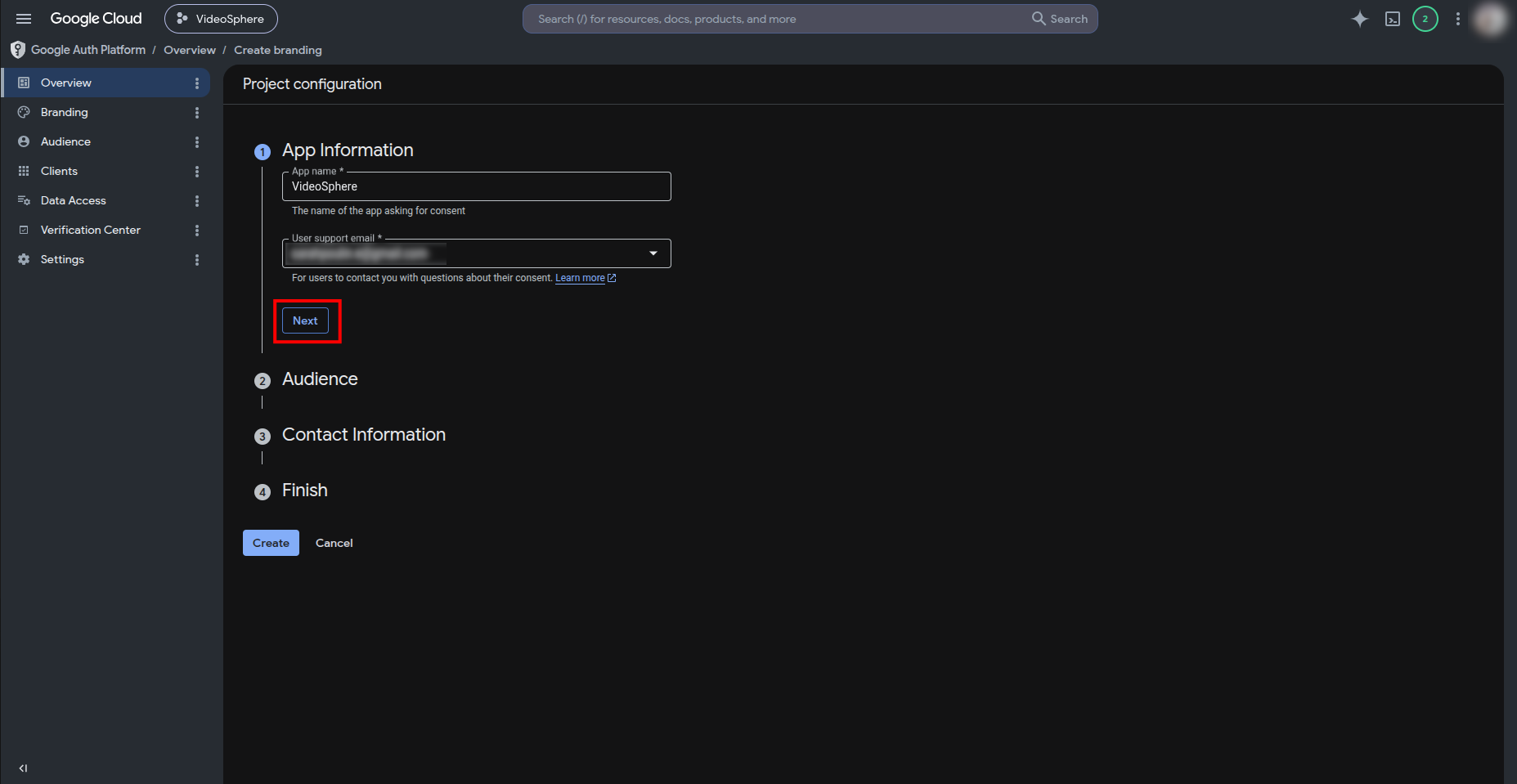
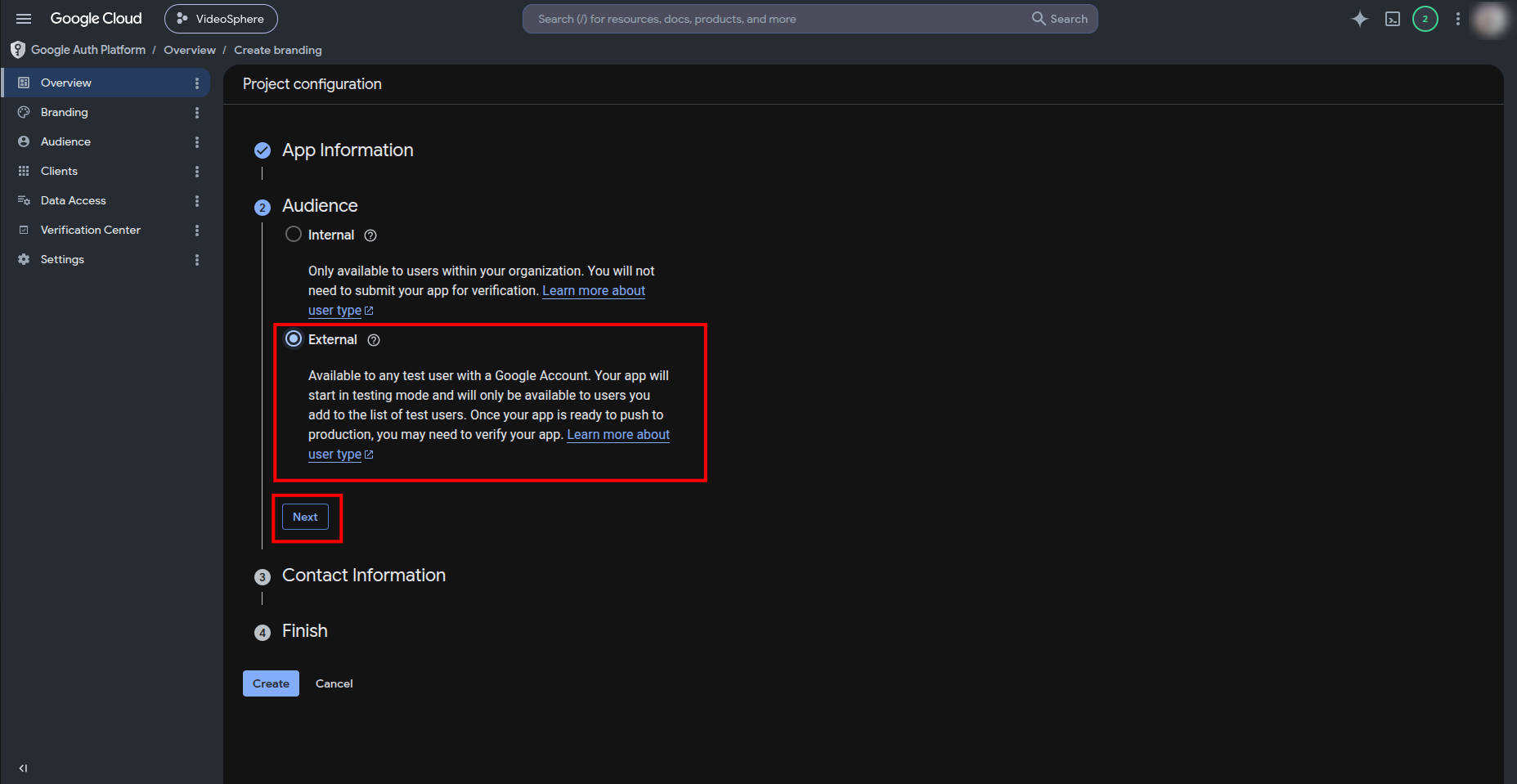
Audience — choose External for personal or homelab use (Google Workspace internal apps can choose Internal). Click Next.
Contact Information — add a developer contact email. Click Next.
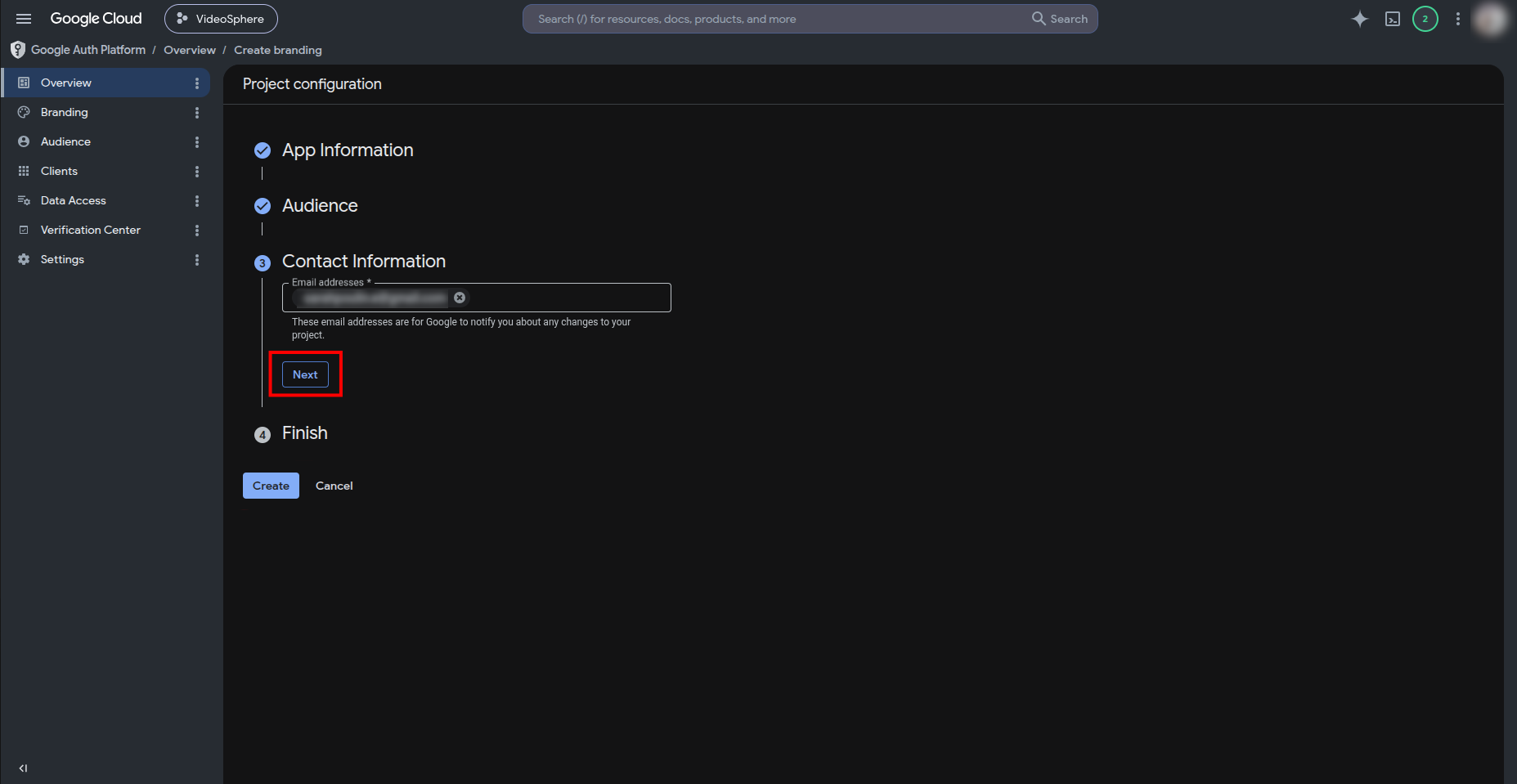
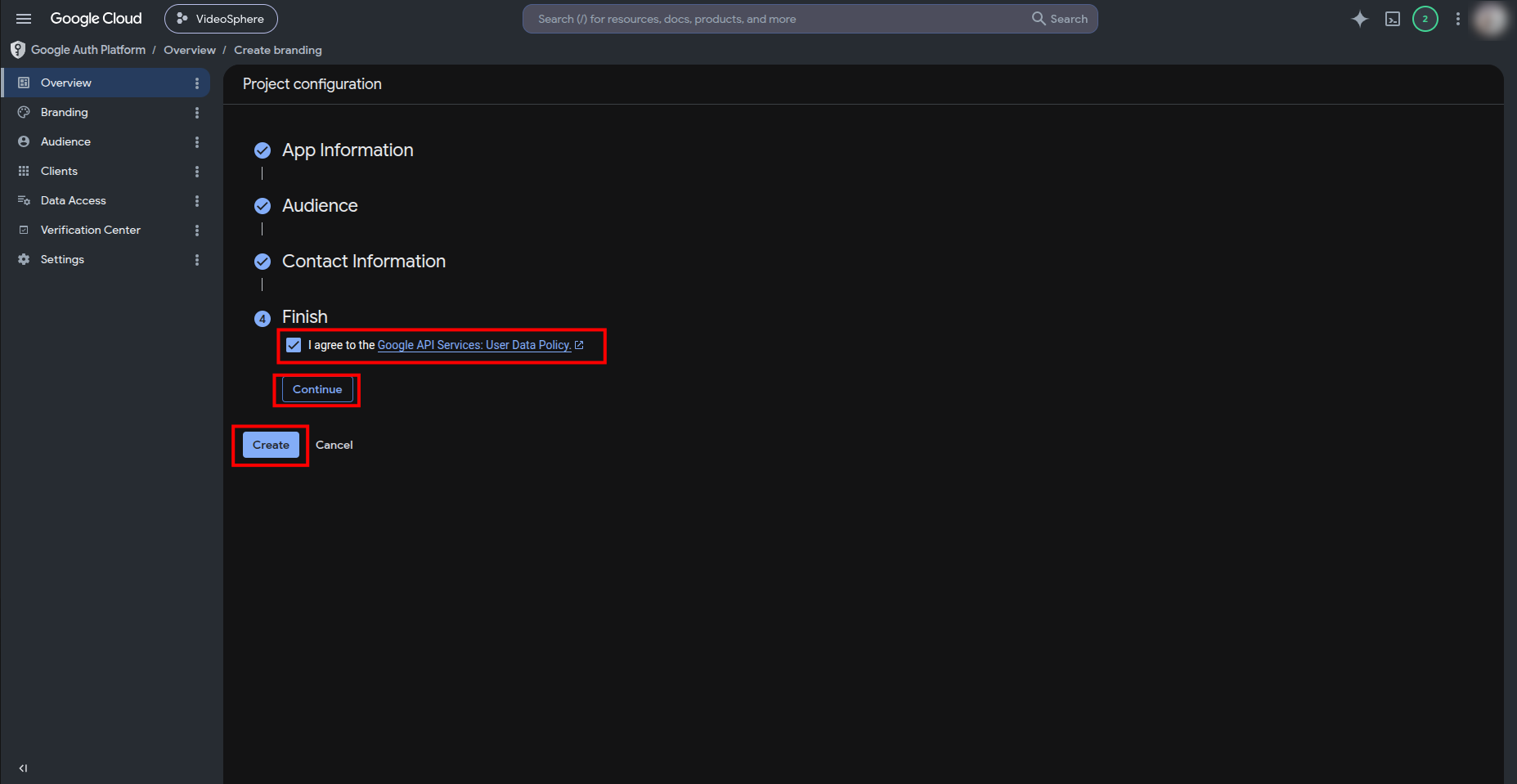
Finish — review the summary, accept the Google API Services policy, then click Continue and Create.
Part 3 — Data Access (scopes)
Platform connections need explicit scopes on the consent screen. Sign-in uses standard OpenID scopes (openid, email, profile) and does not require extra entries here.
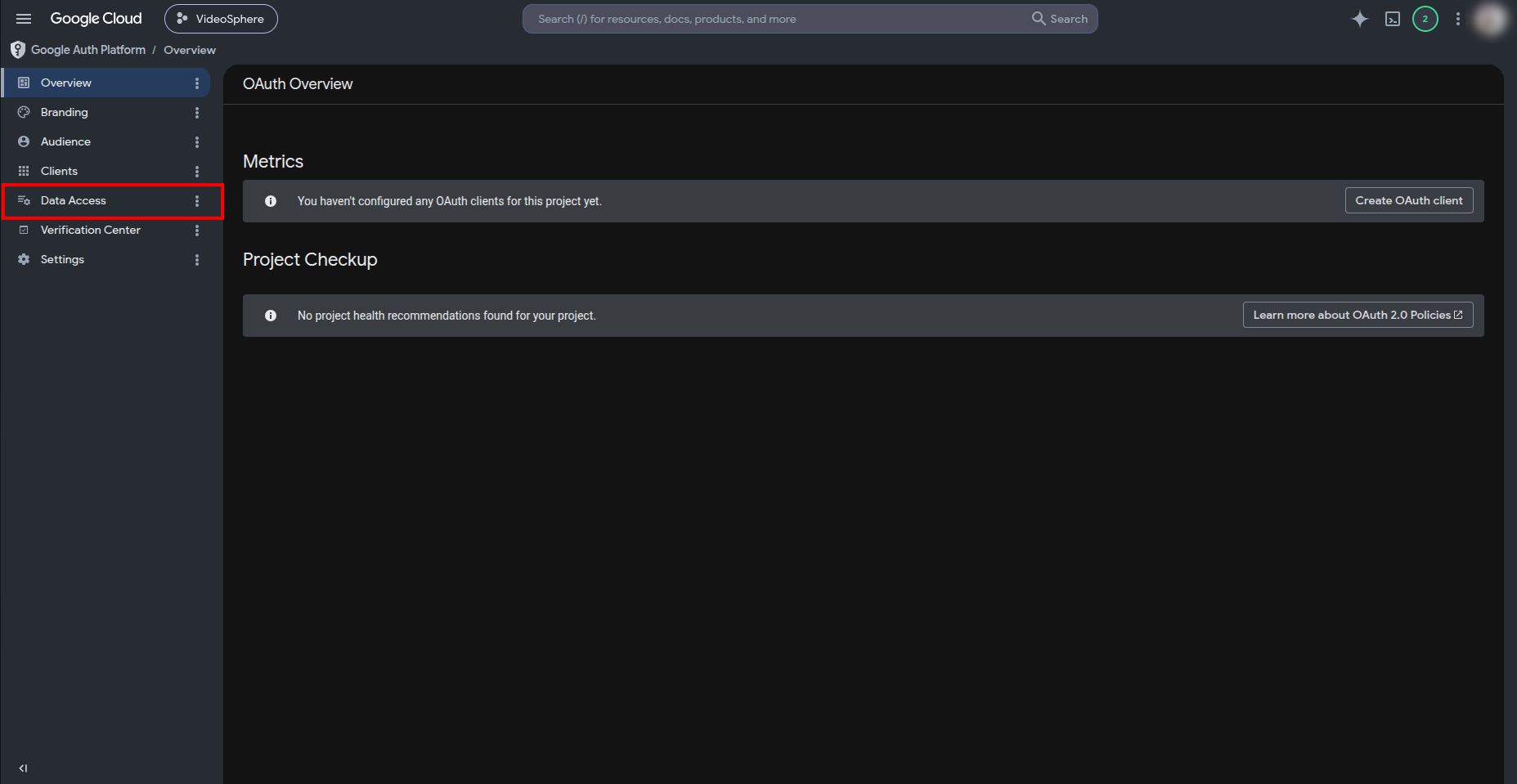
From OAuth Overview, open Data Access (left sidebar).
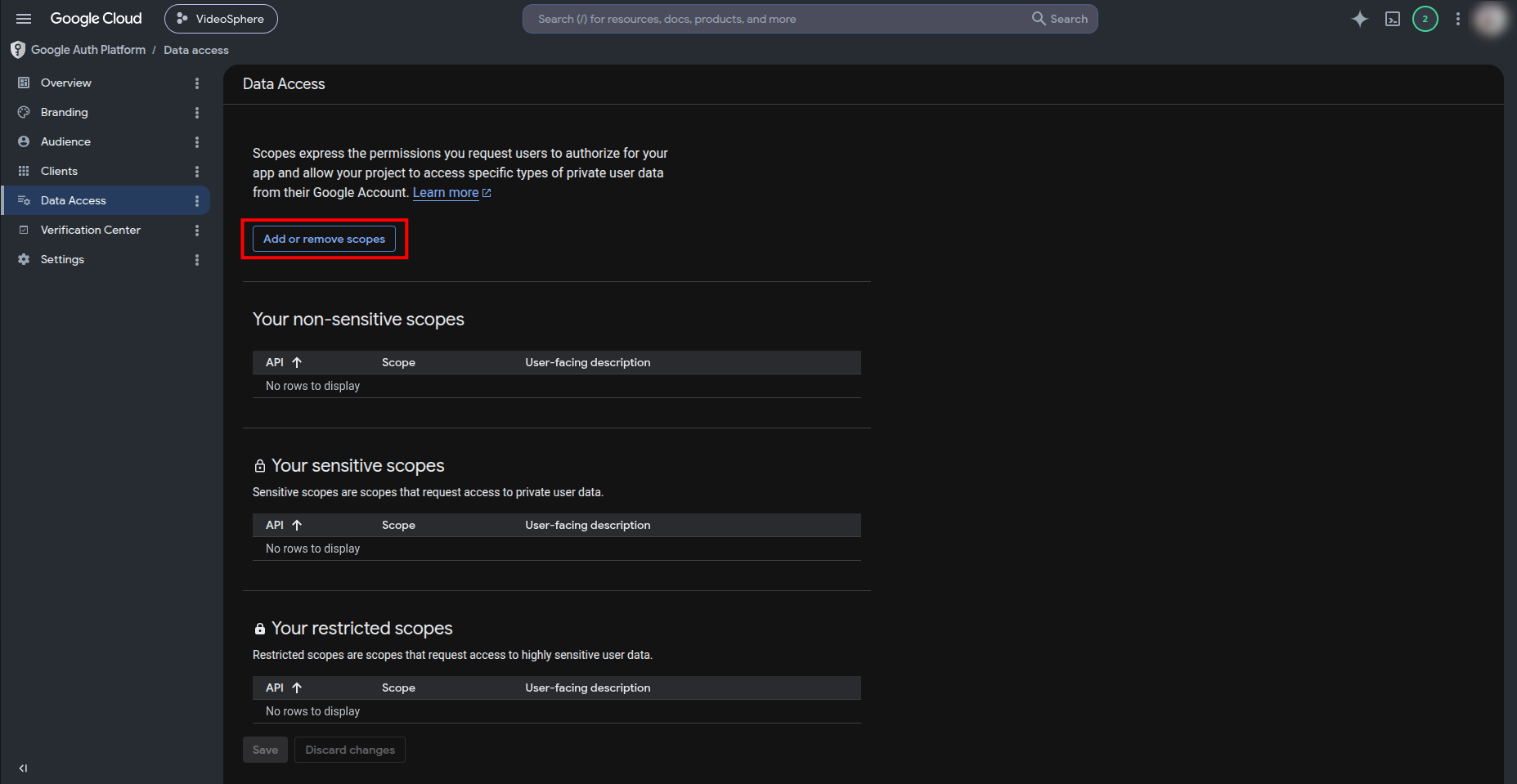
Click Add or remove scopes.
YouTube scopes
Add each scope below. In the scope picker, filter by /auth/youtube to find them quickly.
Select Manage your YouTube account (
.../auth/youtube).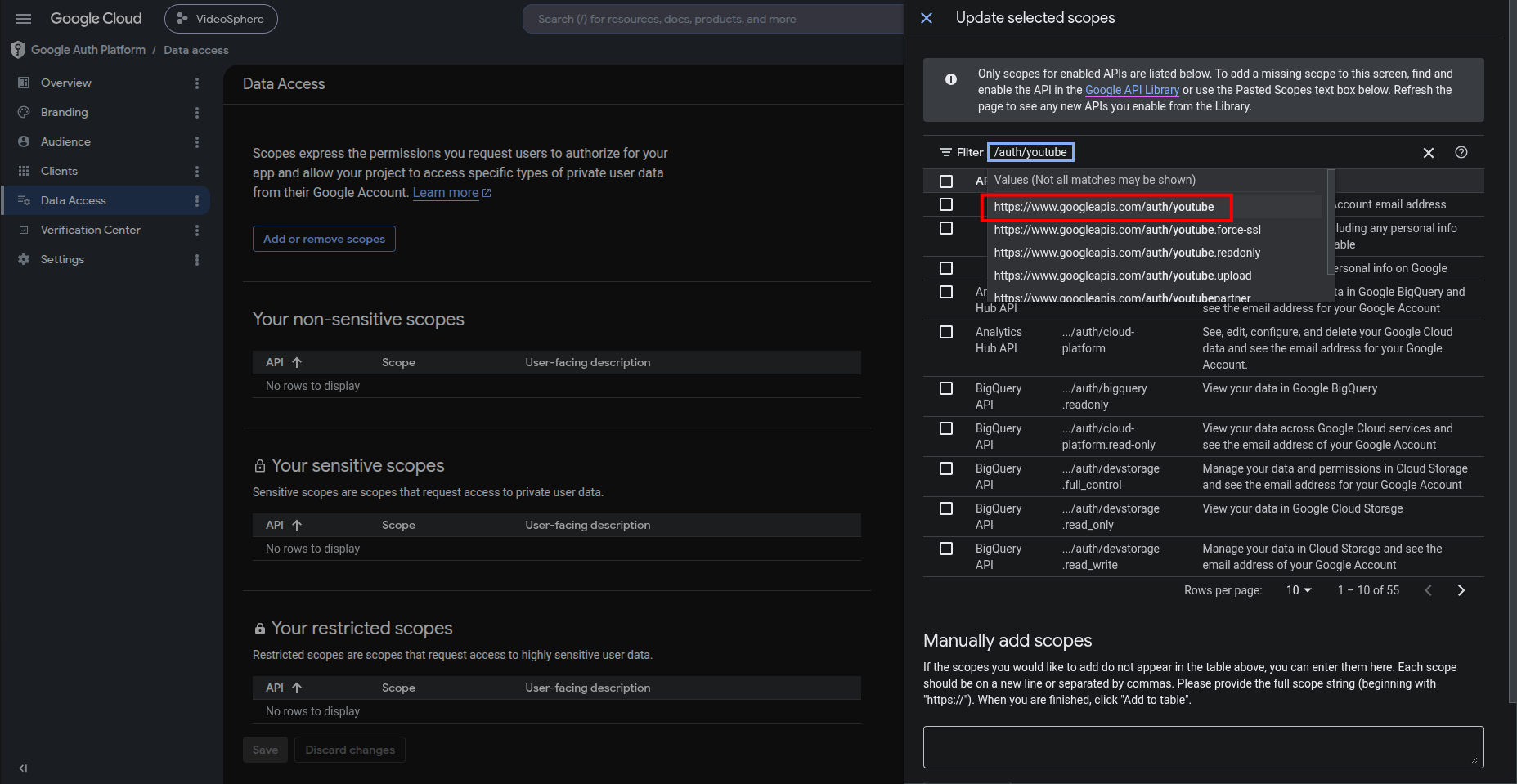
Check
Manage your YouTube accountand then click on the smallxto clear the filter.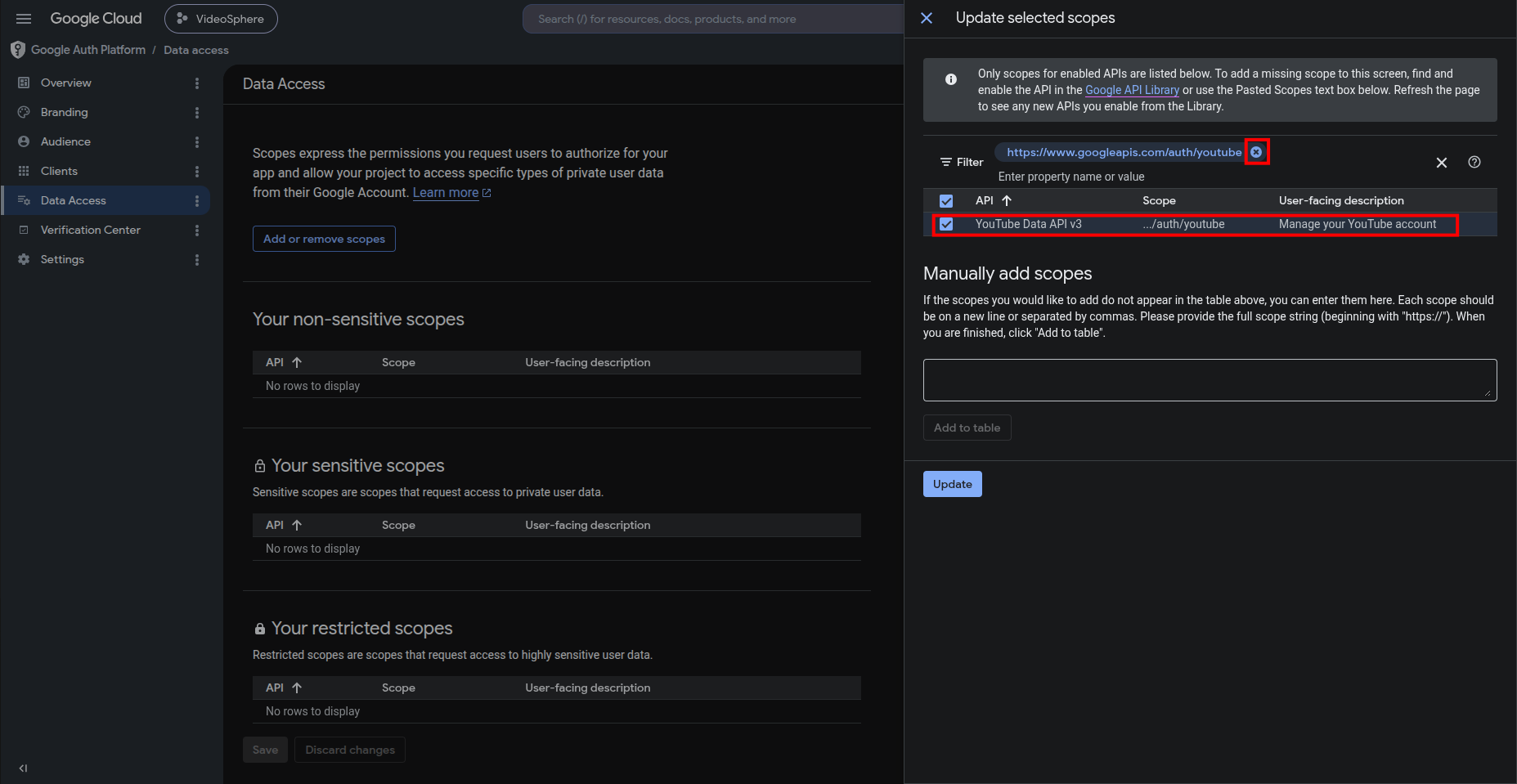
Select See, edit, and permanently delete your YouTube videos, ratings, comments and captions (
.../auth/youtube.force-ssl), check it, and clear the filter.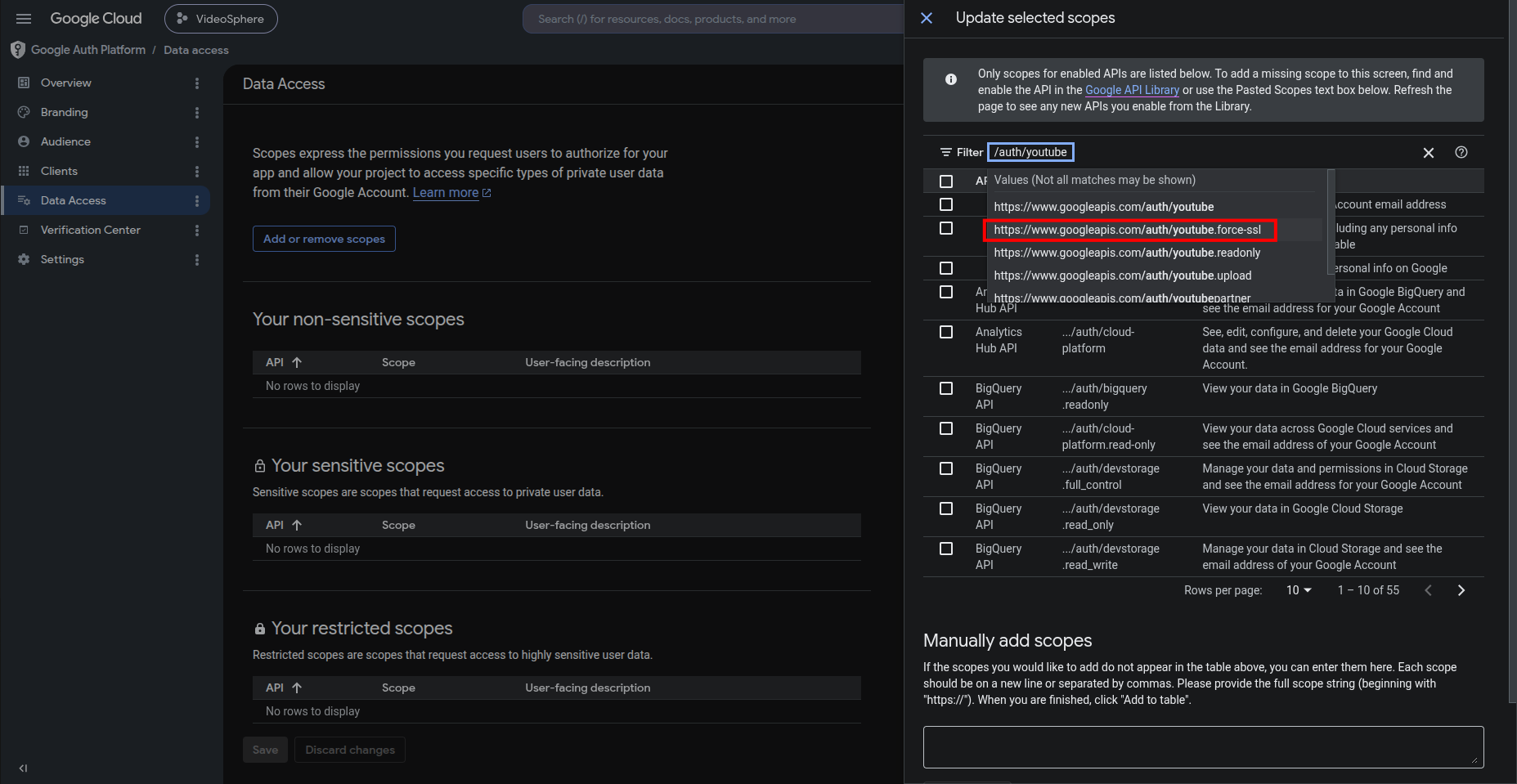
Select Manage your YouTube videos (
.../auth/youtube.upload), check it, and clear the filter.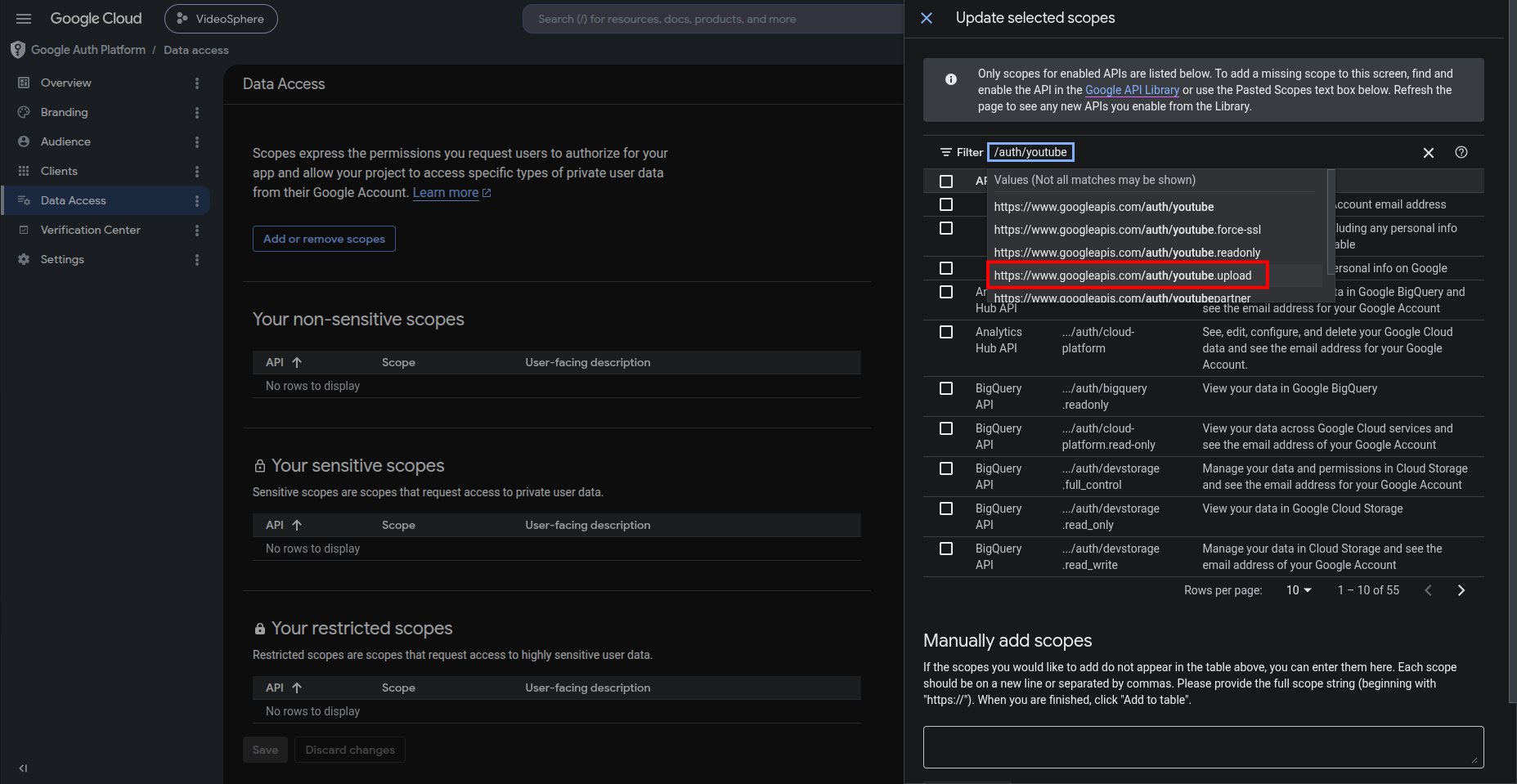
Select View your YouTube account (
.../auth/youtube.readonly), check it, then click Update.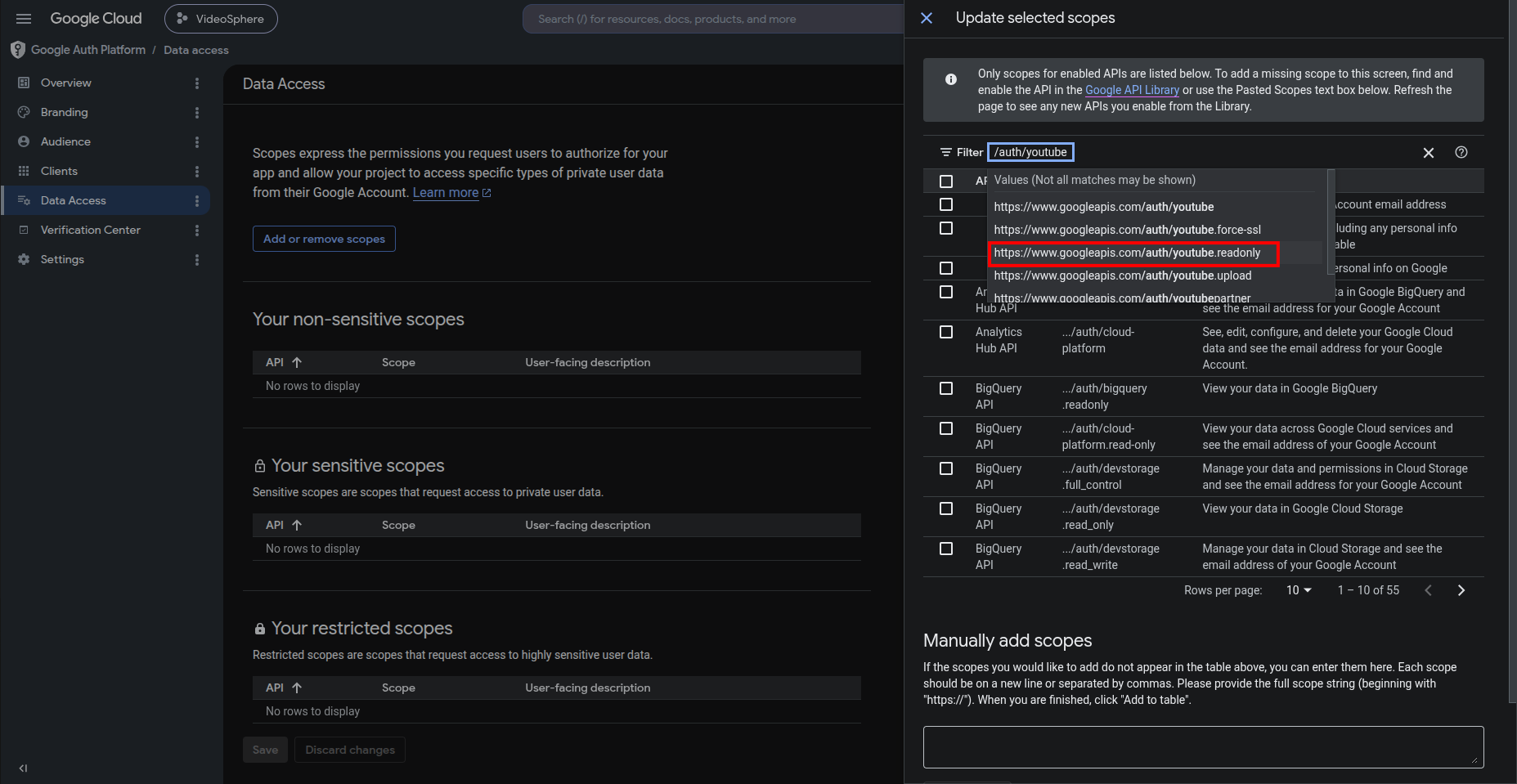
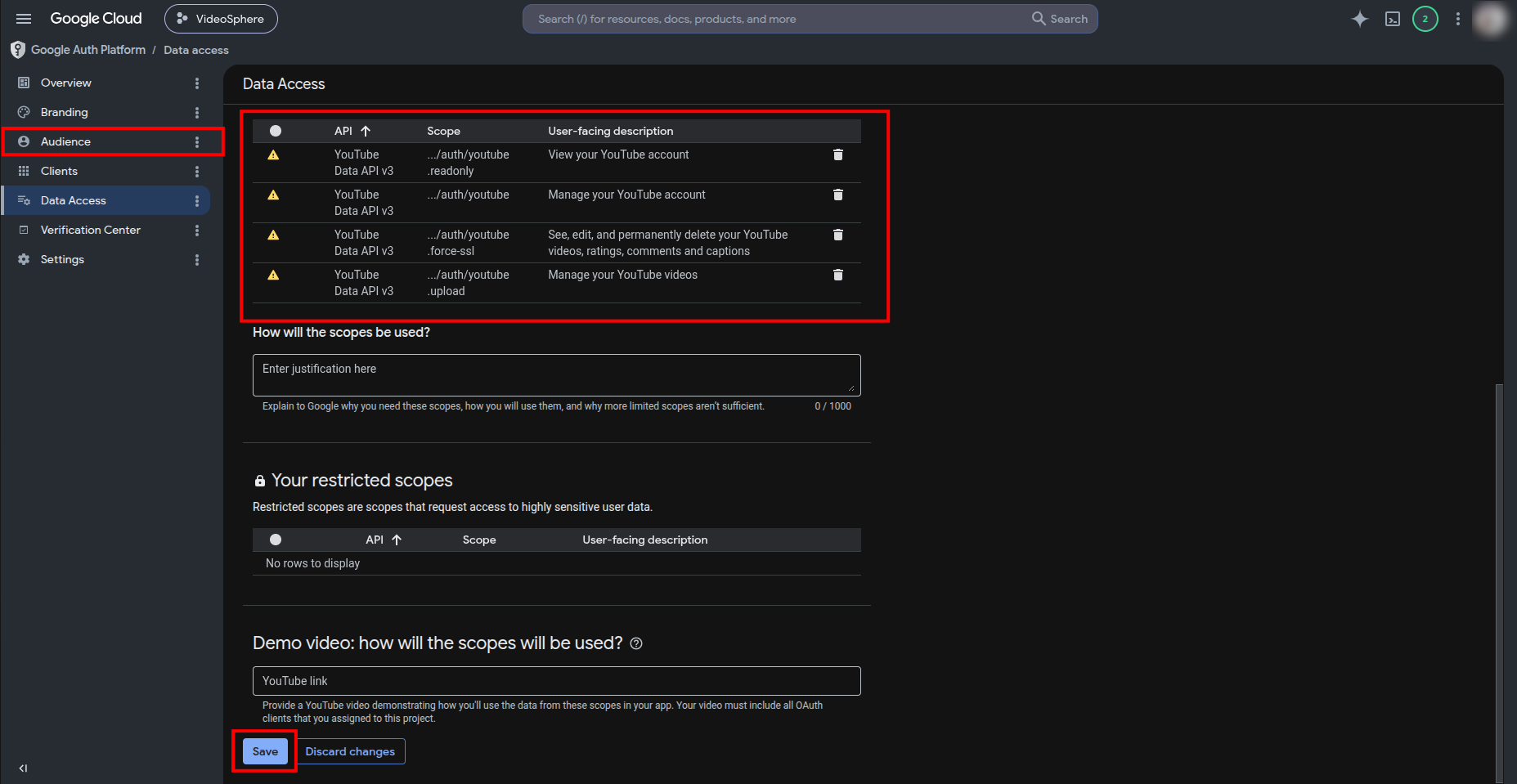
Confirm all four scopes are there, then click Save, and head to Audience.
Part 4 — Publishing the App
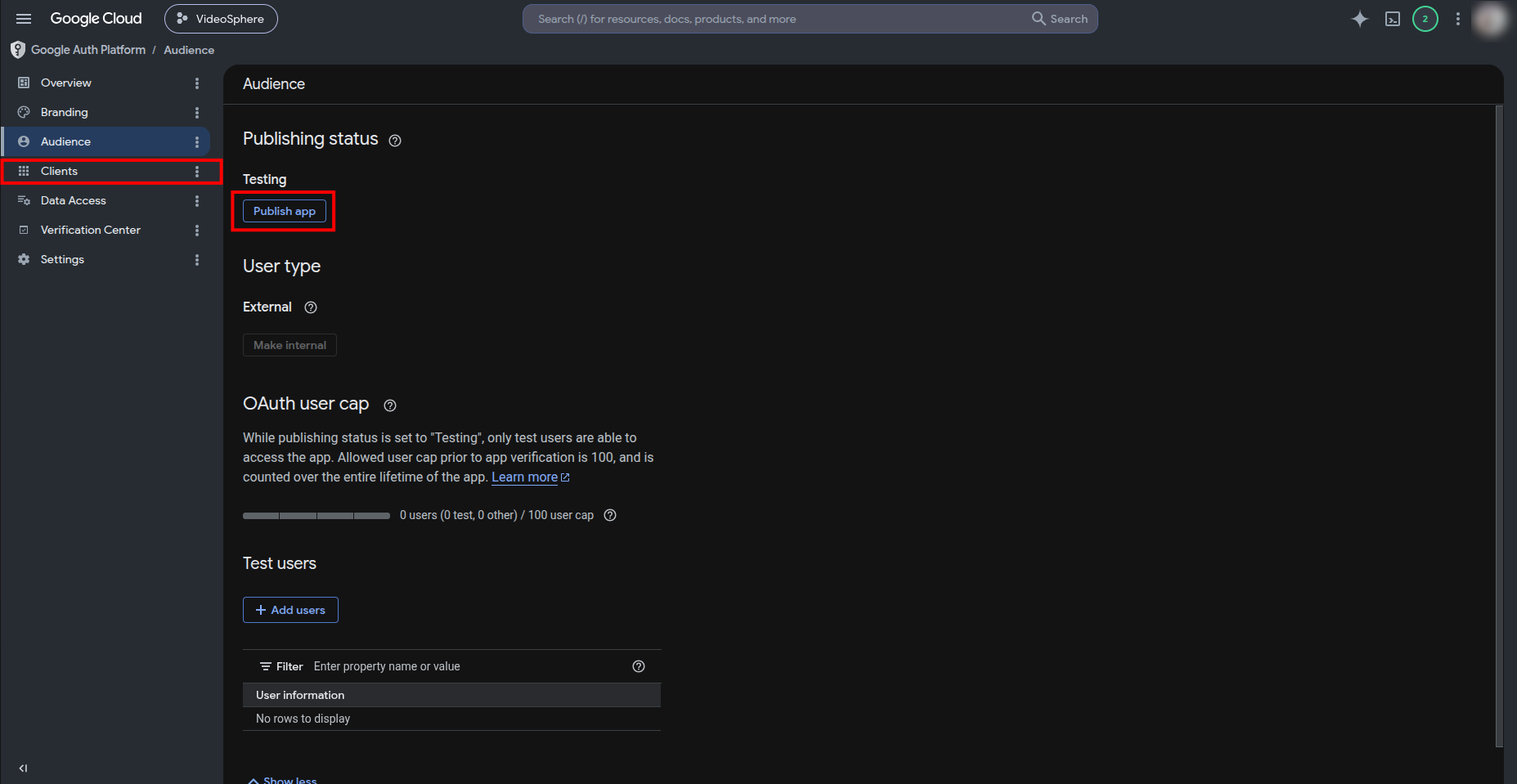
If the app stays as Testing, only accounts listed as test users can complete OAuth, and manual reconnection must happen roughly on a weekly basis. Publish app is the solution, and verification is optional. The user, when connecting with OAuth, will see a warning that the app is not verified.
- In Audience, under Testing, click Publish app. When finished, go to Clients to create OAuth credentials.
Part 5 — Create OAuth clients
Create three clients. Use Web application as the application type for each. Store credentials in the same place as your other VideoSphere secrets: .env.local for local dev or Docker Compose, or Environment variables on a Portainer stack (see Deployment Guide).
Same Cloud project: Sign-in, YouTube, and Drive clients normally share one OAuth consent screen. Google treats that as one app grant for the user — revoking a token from one client can invalidate the others. VideoSphere therefore does not call Google's revoke endpoint when disconnecting Google sign-in or abandoning a failed sign-in; it only clears local sign-in credentials so YouTube/Drive stay connected. Platform disconnect (YouTube/Drive) still revokes that platform's token.
Google Sign-in client
On Clients, click + Create client.
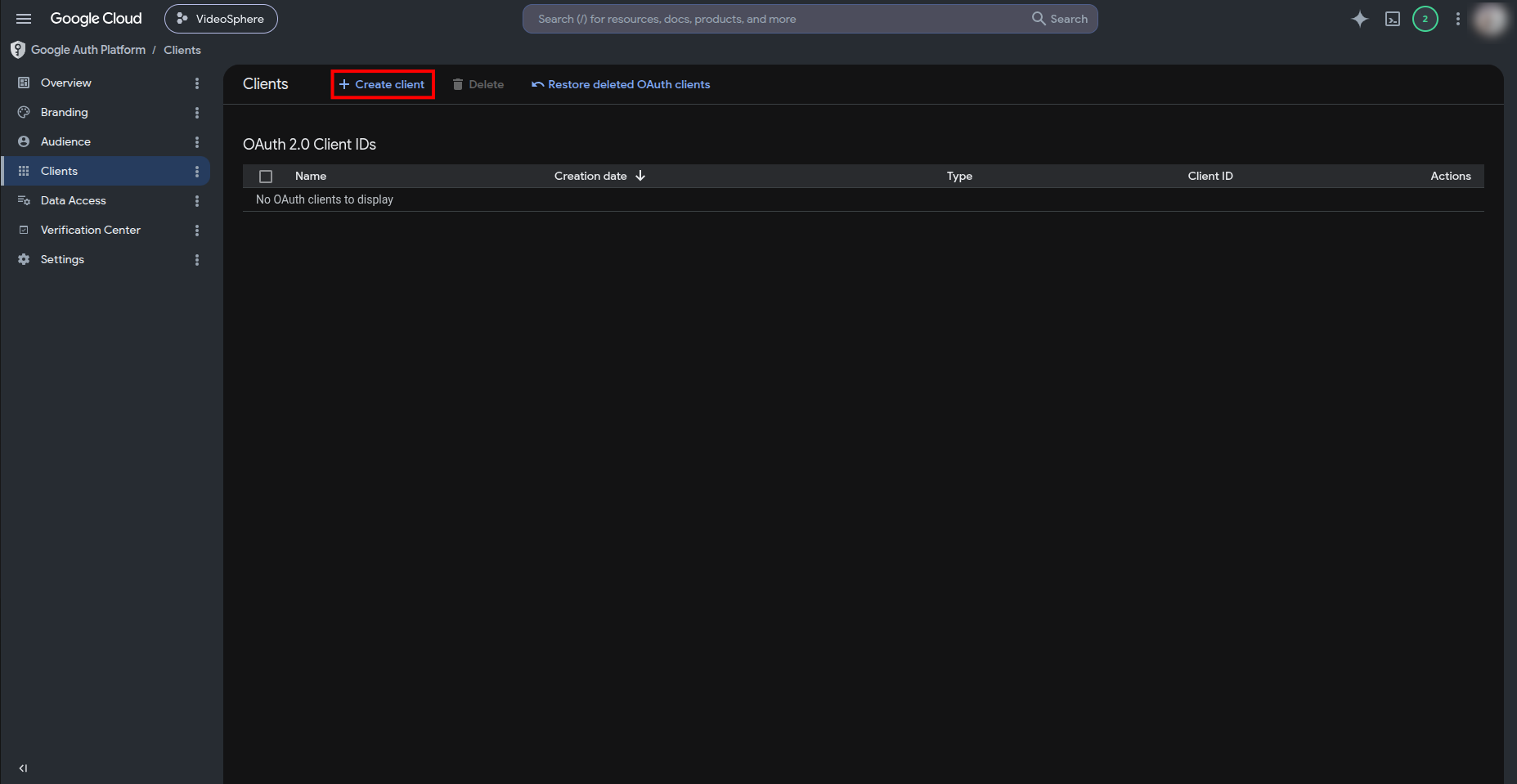
Configure the client:
- Name:
Google Sign-in(or similar) - Authorized JavaScript origins: leave empty unless you add a separate web origin later
- Authorized redirect URIs — add the production URL, and optionally the local URL:
http://localhost:9624/api/auth/oauth/callbackhttps://your-domain.com/api/auth/oauth/callback(replace with your real host)
Click Create. 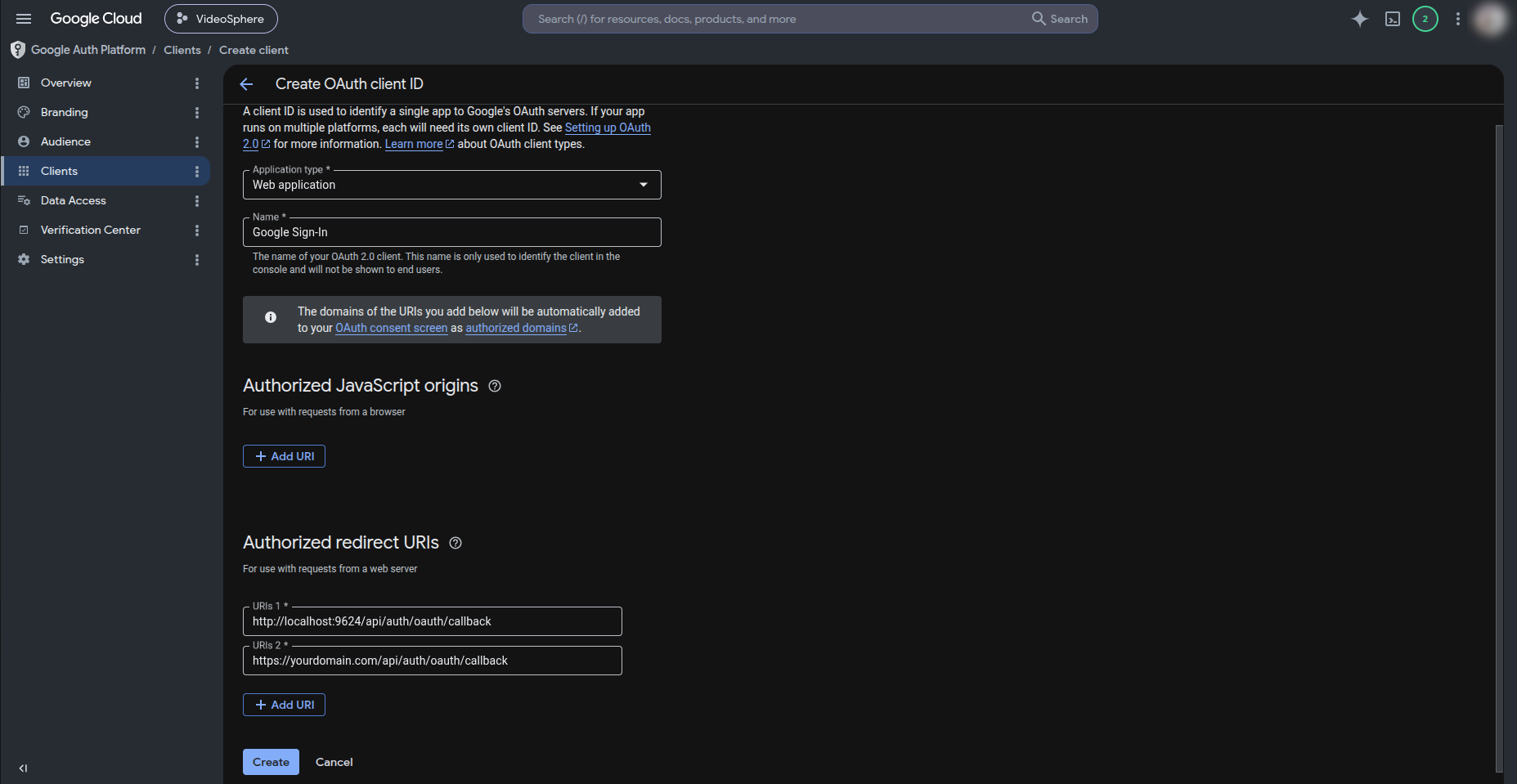
- Copy the Client ID and Client secret into
.env.local(localpnpm devor Docker Compose with--env-file .env.local), or into your Portainer stack Environment variables:
bash
GOOGLE_CLIENT_ID=your-google-sign-in-client-id
GOOGLE_CLIENT_SECRET=your-google-sign-in-client-secret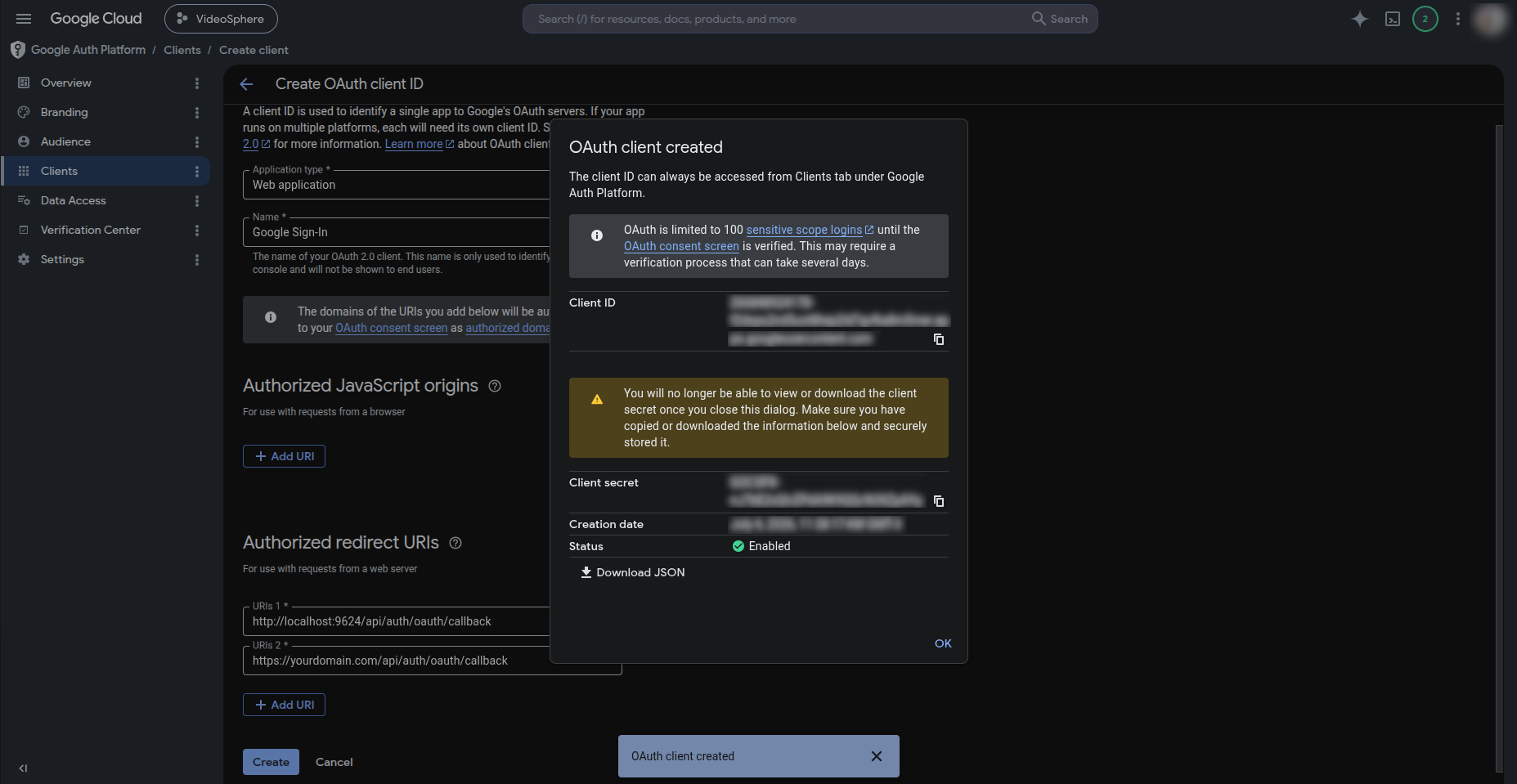
YouTube Connection client
- Click + Create client again:
- Name:
YouTube Connection - Authorized redirect URIs:
http://localhost:9624/api/platforms/callback/youtubehttps://your-domain.com/api/platforms/callback/youtube
bash
YOUTUBE_CLIENT_ID=your-youtube-client-id
YOUTUBE_CLIENT_SECRET=your-youtube-client-secret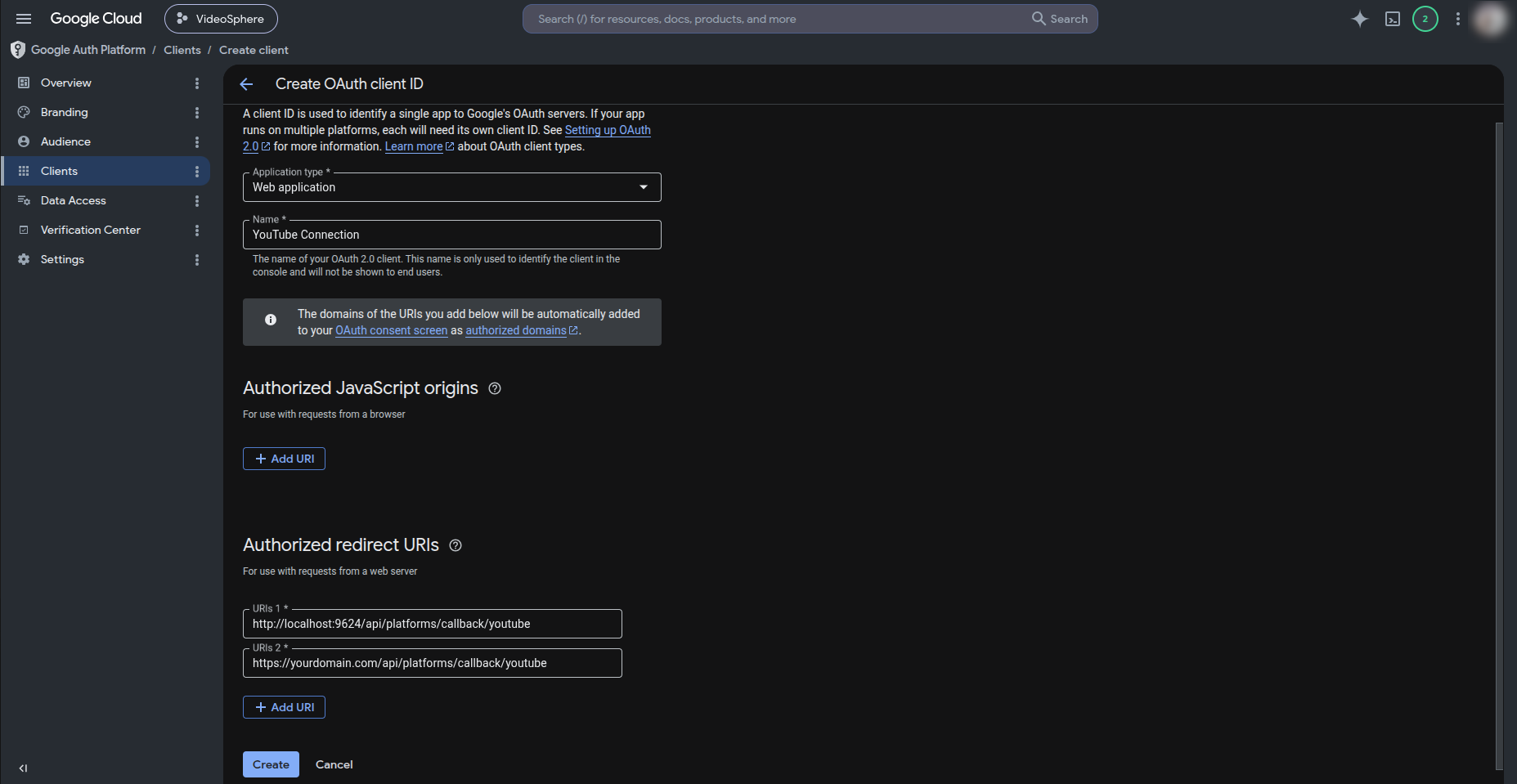
Google Drive Connection client
- Click + Create client again:
- Name:
Google Drive Connection - Authorized redirect URIs:
http://localhost:9624/api/platforms/callback/drivehttps://your-domain.com/api/platforms/callback/drive
bash
GOOGLE_DRIVE_CLIENT_ID=your-google-drive-client-id
GOOGLE_DRIVE_CLIENT_SECRET=your-google-drive-client-secret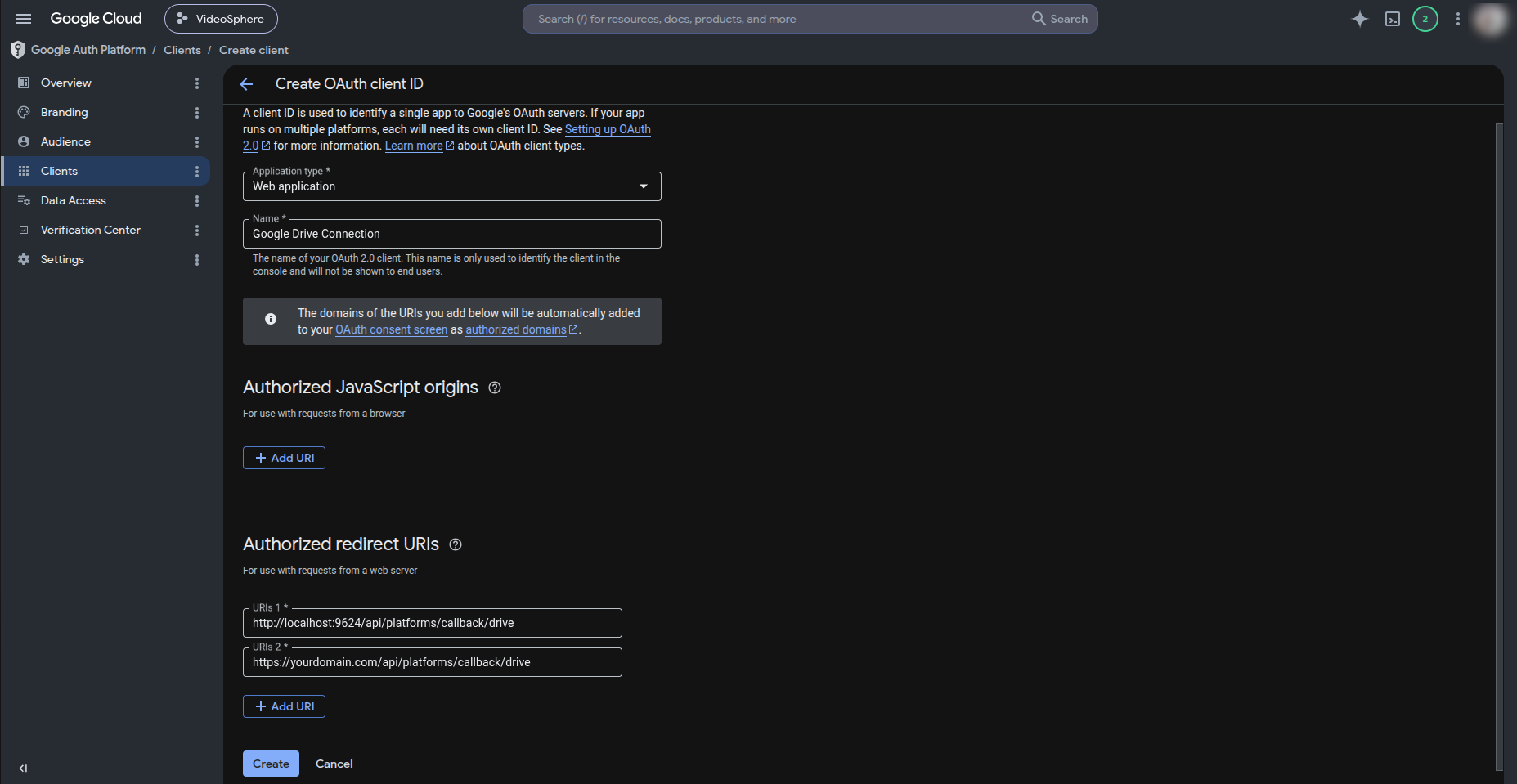
Verify in VideoSphere
- Restart the app after updating environment variables (
pnpm devlocally, or redeploy the container). - Sign-in: open
/loginand use Continue with Google (requiresGOOGLE_CLIENT_*). - Platform connections: sign in, go to Profile → Connections, and connect YouTube and/or Google Drive.
If OAuth fails, check the browser URL for ?error= query parameters and the app logs.
Callback URL reference
Replace the host with your NEXT_PUBLIC_APP_URL origin (your domain name, ie http://localhost:9624 or https://yourdomain.com).
| Integration | Callback path |
|---|---|
| Google Sign-in | /api/auth/oauth/callback |
| YouTube | /api/platforms/callback/youtube |
| Google Drive | /api/platforms/callback/drive |
Troubleshooting
redirect_uri_mismatch
The redirect URI sent by VideoSphere does not match any URI on the OAuth client. Confirm:
NEXT_PUBLIC_APP_URLmatches the URL in the browser (includinghttpvshttpsand port9624locally).- The same origin is registered on the correct client (Sign-in vs YouTube vs Drive use different clients and URIs).
access_denied or login blocked in Testing mode
Add the Google account under Audience → Test users, or publish the app.
YouTube connect works but uploads fail with permission errors
Disconnect YouTube on Profile → Connections and reconnect so Google issues a fresh token with current scopes. After adding the full youtube scope in the codebase, existing connections may need reconnecting.
OAuth works locally but not in production
Update all three clients with production redirect URIs, set NEXT_PUBLIC_APP_URL to the public URL, and redeploy. If you terminate TLS at a reverse proxy, the public URL must still match what users type in the browser.
Related documentation
- Deployment Guide — full environment variable list for Docker and Portainer
- Uploads, Livestreams & Distribution — connecting platforms from the UI
.env.example— all OAuth variable names in the repository